25 AI Assistant Use Cases for Work, Scheduling, Follow-Ups and Daily Planning
Specific workflows organized by when they happen during your day or week
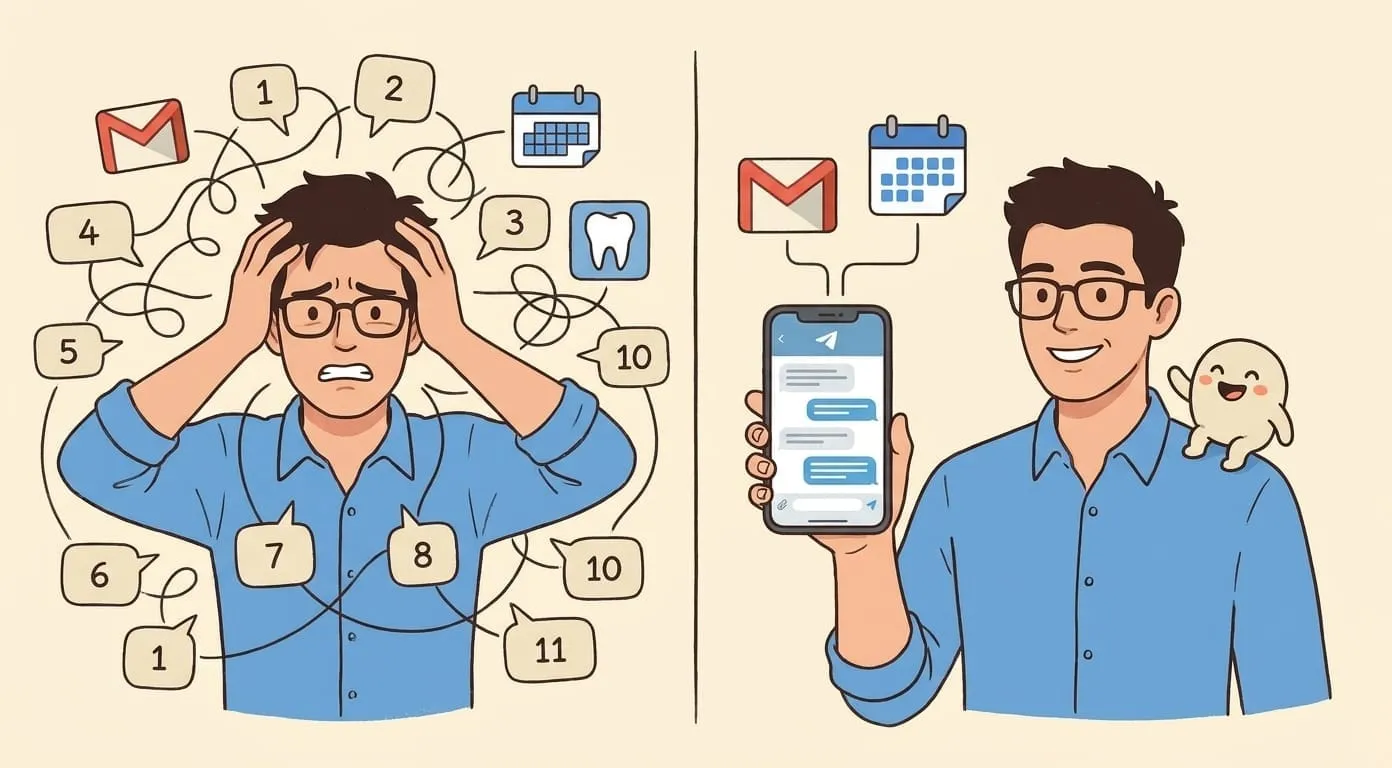
Most people who try an AI assistant use it twice, get a generic response, and go back to doing things manually. That's usually a configuration problem, not a product problem. The assistants that actually take action and save time aren't running on vague instructions like "help me be more productive." They're set up with real context: your calendar, your inbox, your recurring tasks, your communication style.
Below are 25 specific use cases organized by when they happen during your day or week. Each one describes what the assistant actually does and what you'd be doing instead without it.
Morning routine
1. Inbox triage
The assistant scans your inbox each morning, flags anything that needs a reply today, surfaces the two or three threads where someone is waiting on you, and archives the rest into labeled folders. Without it, you'd spend the first 20-30 minutes of your day reading emails you don't need to act on, in the wrong order.
2. Daily briefing
Before you open a single app, the assistant pulls your calendar for the day, checks whether any meetings have prep material attached, and gives you a two-paragraph summary of what the day actually looks like. The alternative is spending five minutes bouncing between your calendar, your task list, and your notes before you have a clear picture.
3. Priority list
The assistant cross-references your task list with your calendar, your flagged emails, and any deadlines you've set, then gives you a ranked list of what to work on. Not a dump of everything, just what matters today. Without this, you're making that judgment call yourself while already distracted.
4. Overnight catch-up
If you work across time zones or have a team that sends messages outside your hours, the assistant summarizes what came in overnight: Slack threads, emails, any calendar invites added while you were offline. You get the digest in two minutes instead of scrolling through 40 messages trying to reconstruct what happened.
Meetings
Thirty minutes before a call, the assistant pulls together a one-page brief: who's in the meeting, what was discussed last time you spoke with them, any open action items, and relevant context from your notes or shared docs. Most people either skip prep entirely or spend 15 minutes hunting through old emails. Neither works well.
6. Agenda draft
You tell the assistant the goal of the meeting and who's attending. It drafts an agenda with time blocks and sends it to attendees for input. This takes about two minutes. Writing an agenda from scratch, formatting it, and remembering to send it ahead of time typically takes 10-15 minutes and often doesn't happen at all.
7. Note summary
After a recorded call, the assistant transcribes the audio, pulls out the key points discussed, and formats it as a summary you can share. The full transcript is there if anyone wants it, but the summary is what people actually read. Writing meeting notes manually is a task most people avoid because it's time-consuming and no one wants to do it right after a call.
8. Action item extraction
The assistant reads through the meeting transcript or notes and pulls out every commitment made: who said they'd do what, by when. It then adds those to the right task lists or sends follow-up messages to the right people. Without automation, action items get captured inconsistently or not at all, and things fall through.
9. Scheduling
You tell the assistant to find a 45-minute slot with three specific people next week, avoiding mornings on Tuesday and anything after 4pm. It checks availability, proposes times, sends the invite, and follows up if someone doesn't respond. The back-and-forth this replaces typically takes 6-8 messages and half a day.
Communication
10. Follow-up emails
The assistant tracks sent emails that haven't received a reply after a set number of days, drafts a short follow-up in your voice, and either sends it automatically or queues it for your review. Most people have good intentions about following up and forget. The deal or the response they needed never comes back.
11. Slack responses
For routine messages ("Can you send me the link to X?" or "Are you free Thursday?"), the assistant drafts a reply and flags it for your approval or sends it directly, depending on what you've set up. It doesn't replace your judgment on anything nuanced, but it removes the cognitive load of handling the tenth small message of the day.
12. Outreach drafts
You give the assistant a name, their company, what you want to discuss, and any background you have. It drafts a short, specific outreach email that doesn't sound like a template. Personalized outreach at any volume is either very slow or very generic. The assistant makes it possible to send 20 specific emails in the time it used to take to write five.
13. Response drafts from long threads
You paste in a long email thread or brief the assistant on the context. It reads everything, identifies what's actually being asked of you, and drafts a reply. Reading and responding to complex email threads is one of the highest-friction parts of most knowledge work, and it's almost entirely reactive.
14. Meeting confirmation and logistics
After a meeting is scheduled, the assistant sends a confirmation with the dial-in details, any documents attendees should read beforehand, and a reminder 24 hours out. Small logistical tasks like this take about three minutes each, but they add up across a week.
Research
You name a competitor or a topic. The assistant searches recent news, product announcements, and public pricing pages, then gives you a summary of what changed in the last 30 days. Staying current on competitors manually requires setting up alerts, reading them, and synthesizing them. Most people do this inconsistently.
You share a link or a PDF. The assistant reads it and gives you the key points in a few sentences, with the option to ask follow-up questions. Researchers and managers who read dozens of documents a week can cut their reading time significantly without losing the signal. The alternative is either reading everything in full or not reading it at all.
17. Data lookups
The assistant can check current exchange rates, flight prices, shipping times, or any other lookup task you'd normally do by opening three tabs. Individual lookups are small, but the context-switching cost is real.
18. Background on new contacts
Before a first call with someone, you give the assistant their name and company. It pulls together publicly available information: recent work, company context, any mutual connections, recent things they've published or said publicly. Without this, most people either spend 15 minutes doing this research or skip it and walk into the call cold.
Personal
19. Package and order tracking
The assistant monitors your incoming orders and surfaces anything that's delayed or needs your attention. You stop checking five different "track your order" emails and the assistant tells you when something is actually late.
20. Travel planning
You give the assistant the dates, destination, and your preferences. It suggests flights, flags good hotel options in the right area, and builds a basic itinerary. You still make the final calls, but the research phase, which is the part that takes 45 minutes, is done before you've opened a browser.
21. Appointment scheduling and reminders
The assistant manages reminders for things that aren't work tasks: prescription refills, dentist appointments, annual subscriptions that are about to renew. These are exactly the kind of low-stakes tasks that slip because you're not looking for them until they're overdue.
22. Expense logging
You forward a receipt or take a photo. The assistant logs it to the right category in your expense system. At the end of the month, the report is mostly built. The alternative is a pile of receipts or a credit card statement you have to go through retrospectively.
Recurring tasks
23. Weekly reports
The assistant pulls from your task list, calendar, and any connected tools to draft a weekly summary of what was completed, what's in progress, and what's blocked. You edit and send. Writing this manually takes 20-30 minutes and involves remembering what you did five days ago, which is harder than it sounds.
24. Content scheduling
If you're publishing content consistently, whether that's blog posts, social updates, or newsletters, the assistant drafts posts from your notes or outlines, schedules them, and tracks what's gone out. Content consistency is one of the first things to slip when work gets busy. Automating the scheduling and drafting removes the activation energy.
25. Weekly review
Every Friday, the assistant sends you a summary of the week: what you completed, what moved to next week, anything that came up repeatedly, and a first look at what next week looks like. Without a regular review, small things accumulate into bigger problems because you never surface them while they're still manageable.
How these use cases fit together
The 25 use cases above aren't isolated tools. They tend to compound. An assistant that takes real actions across your tools is what makes this work. An assistant that manages your inbox triage also handles your follow-up tracking. One that preps you for meetings also extracts the action items afterward. The more context your assistant has about how you actually work, the less you have to specify each time.
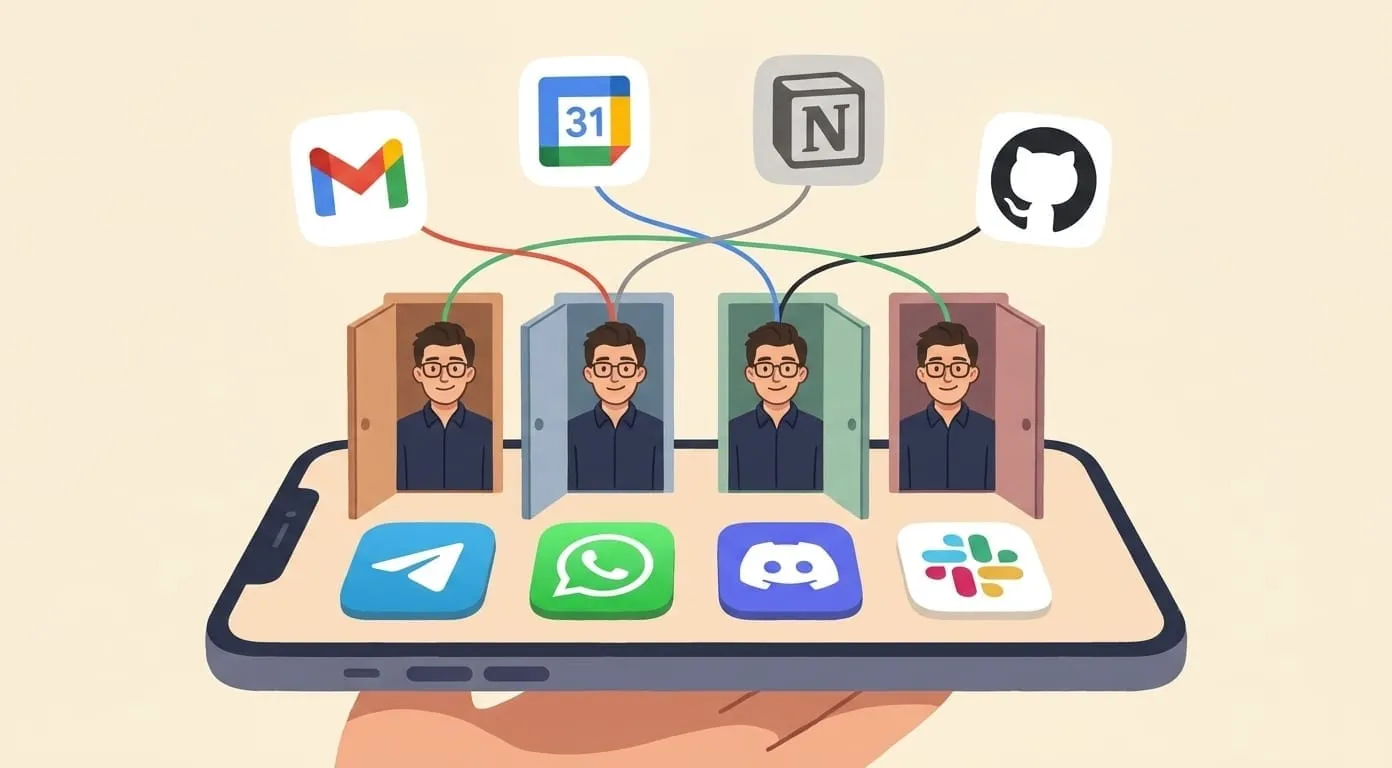
Amplify connects to the tools you already use, so your assistant can act across email, calendar, and task management without you switching contexts. The setup is specific to how you work, which is why the results are different from running a prompt into a generic chatbot.
If you're starting out, pick two or three use cases from the sections above that match where you lose the most time. Get those working reliably before adding more. That's how the compounding actually kicks in.