How to Manage Your Emails with an AI Assistant (Full Setup Guide)
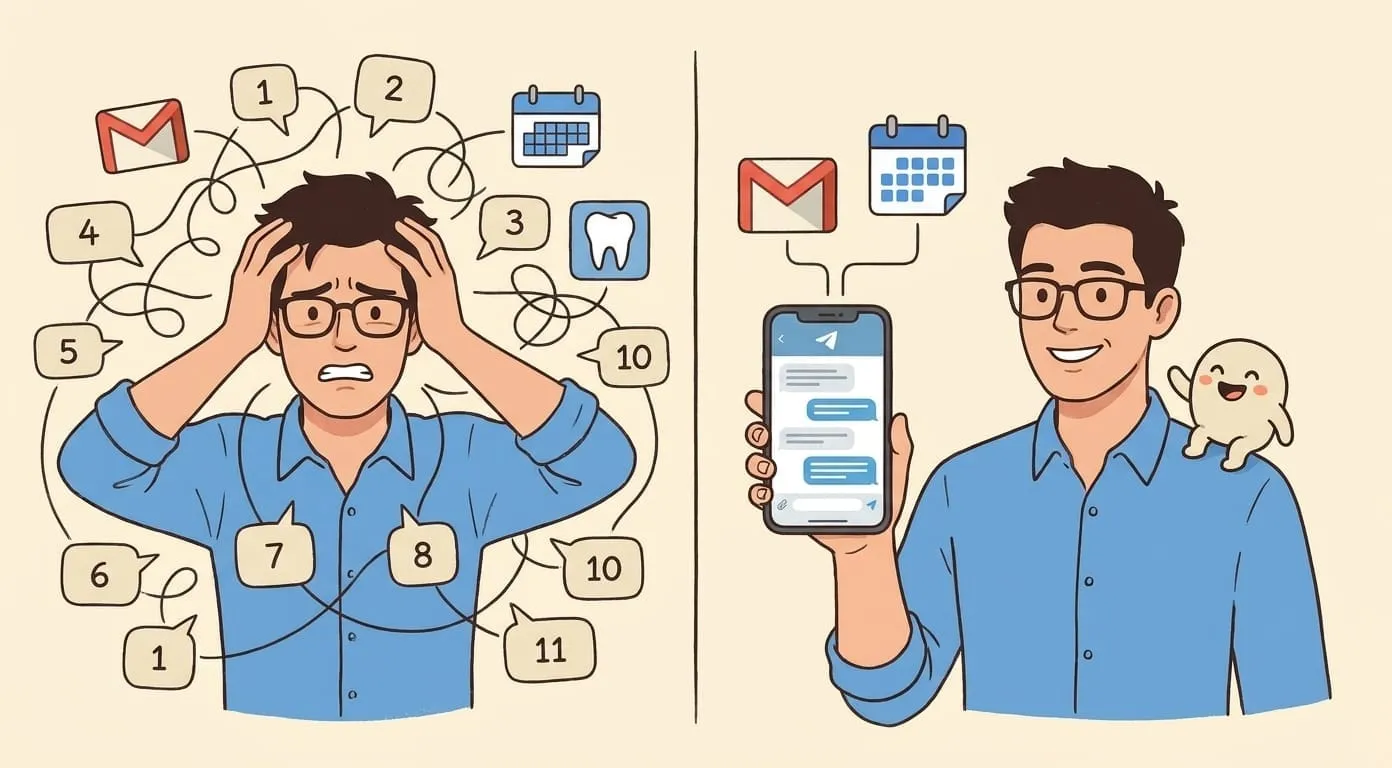
From inbox triage to auto-drafted replies, set up AI email management in 20 minutes
1:00 PM. Another scheduled check. Nothing urgent. No notification. You're not interrupted.
4:00 PM. The agent flags a follow-up: a vendor hasn't replied to your pricing request from Tuesday. A polite nudge draft is ready. You approve it.
5:30 PM. End-of-day sweep. The agent summarizes what was handled today: 14 emails received, 5 replies sent, 2 follow-ups triggered, 7 items auto-categorized and archived. You glance at it, done.
Total time spent on email: roughly 8 minutes, spread across the day in small bursts. No Gmail tab open at any point.
---
Common Questions
Does the agent store my emails? The agent reads emails in real time when executing a task. It doesn't maintain a separate copy of your mailbox. Persistent memory stores your preferences and communication patterns (like knowing you're formal with clients), not the content of individual emails.
Can I use this with a personal Gmail account, not just Google Workspace? Yes. The OAuth connection works with standard Gmail accounts. Google Workspace just happens to be the most common setup among people managing high-volume inboxes.
What if I want the agent to never send an email without my approval? That's the default behavior. The agent drafts, you approve. Auto-sending only happens if you explicitly configure it for specific scenarios.
Can the agent handle attachments? It can read emails with attachments and tell you what's attached (file names, types, sizes). For composing, it can attach files that are already in your Google Drive.
What does this cost? The email-related operations use your Amplify wallet. Reading and categorizing emails is very cheap (fractions of a cent per check). Drafting replies costs a bit more since it involves generating text. A typical user with moderate email volume spends $2 to $5 per month on email-related agent work. The exact amount depends on volume and how many drafts you generate.
Can I use this alongside Gmail's native features? Absolutely. Gmail filters, labels, priority inbox, and stars all continue to work as normal. The agent reads your mailbox as it is, including any organization you've already set up. Some people use Gmail filters for the obvious stuff (receipts, shipping notifications) and the agent for everything that requires judgment.
---
Getting Started
If you already have an Amplify account, the setup takes about 15 minutes. Connect Google at /google-setup, test the connection, set your morning brief, and start adding triage rules as you go. You don't need to configure everything on day one. Start with the morning brief and reply drafting, then layer in follow-up tracking and periodic checks once you're comfortable.
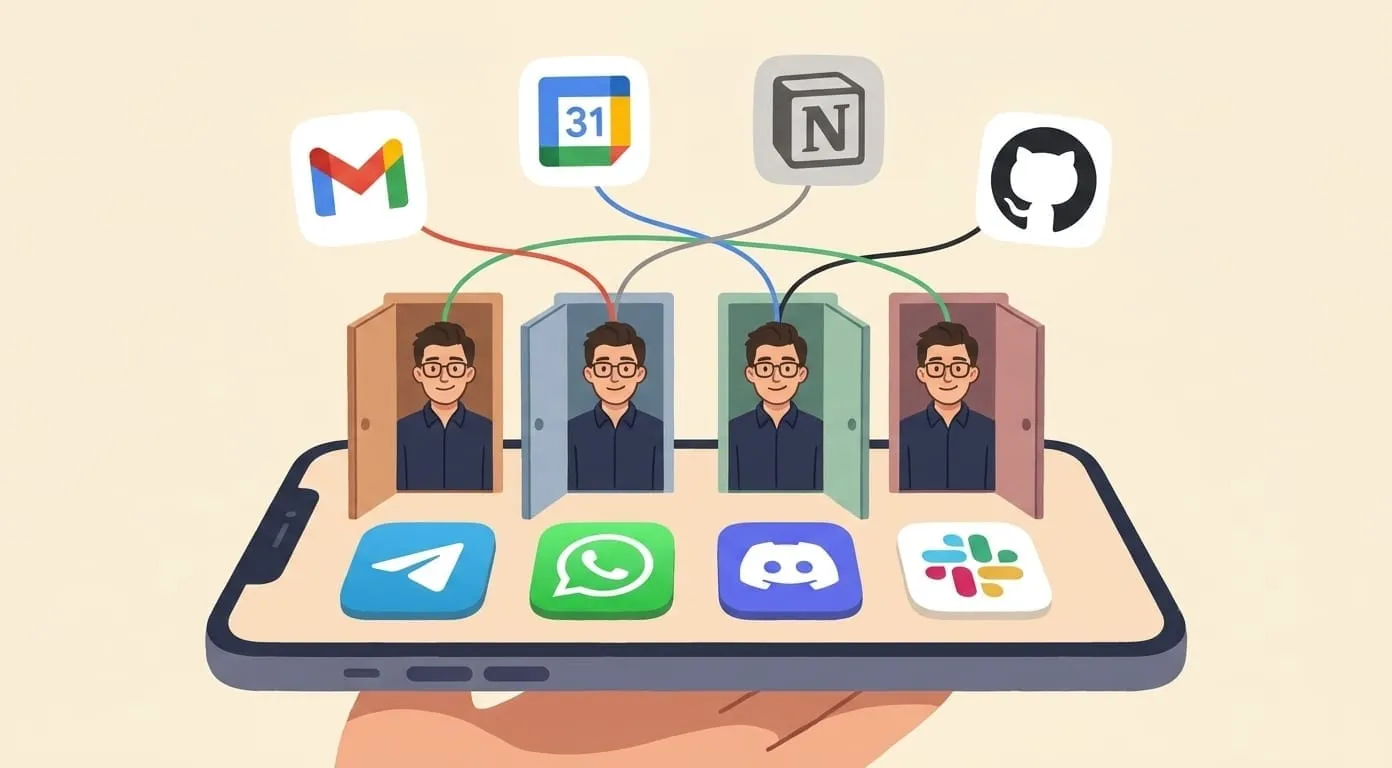
If you're new to Amplify, the full list of what the agent can do is at getamplify.team/skills. Email management is one skill among many, and they all work together through the same conversation. The same agent that handles your inbox also manages your calendar, generates images, does research, and whatever other skills you enable.
Twenty minutes of setup. Eight minutes a day on email instead of thirty or more. And an inbox that actually gets managed without you doing the managing.
Tags: ai-email-management, email-automation, ai-assistant-setup, inbox-management, productivity
*Last updated: June 2026*
If you've read our Field Note on AI inbox triage, you already know the concept: an agent that reads your email, sorts what matters, and drafts replies in your voice. That article covered the why. This one covers the how.
This is the full setup walkthrough. By the end, you'll have an AI assistant connected to your Gmail, triaging your inbox on a schedule, drafting replies, and tracking follow-ups. No prior experience needed, just a Google Workspace account and about 20 minutes.
Let's get into it.
---
What You Need Before Starting
Three things:
That's the full list. No browser extensions, no desktop apps, no forwarding rules to configure.
---
Step 1: Connect Your Google Account
Head to the /google-setup page in your Amplify dashboard. You'll see a button to connect your Google account.
Click it. Google's OAuth consent screen will appear, asking you to authorize two specific scopes:
Approve both scopes. The page will redirect back to your dashboard, and you'll see the connection status change from "pending" to "active." If it stalls on "activating" for more than a minute, refresh the page. The OAuth handshake occasionally takes a few extra seconds.
One thing to know: the agent uses a skill called "Gog" (short for Google) that handles all Google Workspace operations, including email. You don't need to install or enable anything manually. Once the OAuth connection is active, Gog is available.
---
Step 2: Test the Connection
Before building any automation, make sure the basics work. Open your messenger and send your agent a simple request:
> "Show me my last 5 emails."
You should get back a list with sender names, subject lines, and timestamps. If you do, the connection is live and working.
Try a couple more:
> "Do I have any unread emails from [specific person]?"
> "Summarize the last email thread about [topic]."
These confirm that the agent can search, filter, and read full message bodies. If any of these fail, check that both Gmail scopes were approved during the OAuth step. You can re-authorize from the same /google-setup page.
---
Step 3: Configure Your Morning Briefing
This is where things get practical. Instead of opening Gmail every morning and scanning through dozens of messages, you set the agent to do it for you and deliver a summary.
Amplify has a Morning Briefing skill that can include email alongside your calendar, tasks, and anything else you want in a daily overview. But for email specifically, the setup is straightforward.
Tell your agent:
> "Every morning at 7am, check my inbox and send me a summary of anything important from the last 12 hours."
The agent will use Scheduled Tasks (the cron system built into Amplify) to run this check automatically. You don't need to configure cron syntax or set up any technical scheduling. Just describe what you want in plain language, including the time and frequency.
A good morning brief typically includes three buckets:
Urgent. Emails that need a reply today. The agent includes who sent it, what they need, and why it's time-sensitive.
Waiting on you. Threads where someone asked a question, sent a proposal, or requested approval. Ball in your court.
FYI. Threads that moved overnight (new replies, meeting confirmations, shared documents) but don't require action from you yet.
Everything else, newsletters, automated notifications, marketing emails, gets silently categorized and doesn't clutter your brief.
Here's what makes this actually useful rather than just another notification: the brief arrives in your messenger. Not in a separate app, not in a dashboard you need to remember to check. It shows up in the same conversation where you handle everything else.
---
Step 4: Set Up Triage Rules
The default prioritization is decent out of the box, but you'll want to customize it based on your actual email patterns. This is where you teach the agent what matters to you.
Some examples of triage rules you might set:
> "Emails from anyone at @clientdomain.com are always high priority."
> "Anything with 'invoice' or 'payment' in the subject goes to urgent."
> "Newsletter emails should be summarized weekly, not daily."
> "Emails from my team's Slack notification address can be ignored entirely."
You set these by telling your agent in conversation. No config files, no rule builders, no dropdown menus. Just describe the rule, and the agent stores it.
The agent remembers these rules because of persistent memory (powered by Mem0). Every preference you express gets stored and applied going forward. This also means the rules compound over time. After a few weeks, the agent has a detailed model of your email priorities that would be extremely tedious to replicate manually in Gmail filters.
You can also adjust on the fly. If the morning brief includes something you don't care about, just say:
> "Don't include status update emails from Jira in my briefs anymore."
Done. The rule applies from that point forward.
A note on accuracy: during the first week, expect some mis-prioritization. The agent needs exposure to your patterns before it can reliably distinguish between a routine update and something that actually needs your attention. Correct it when it gets something wrong ("That email from Dave was actually urgent, flag anything from him about the Phoenix project as high priority") and it adjusts quickly. Most users report that triage accuracy feels solid by the second or third week.
---
Step 5: Enable Auto-Drafts for Common Replies
This is the part that saves the most time for most people.
When the agent flags an email as needing a reply, you don't have to compose the response from scratch. You can reply from your messenger with a quick instruction:
> "Reply to Sarah's email, confirm Thursday works, suggest 2pm at the Italian place."
The agent drafts a full email in your voice. Not a robotic template, but a message that reflects how you actually write. It picks up your communication style from past conversations (again, persistent memory). If you tend to be brief with colleagues and more detailed with clients, the drafts will reflect that.
You review the draft, tweak if needed, approve, and it's sent from your Gmail. The recipient sees a normal email from you. There's no "sent via" footer, no third-party branding, nothing that reveals an agent was involved.
For truly routine replies, you can go further:
> "When I get a meeting request from someone at @partnerdomain.com, auto-draft a reply accepting and add the event to my calendar. Show me the draft before sending."
This creates a pattern where the agent pre-drafts replies to predictable emails. You still approve before anything gets sent (unless you explicitly tell it to send automatically, which most people don't for email).
You can also dictate replies by voice. Record a quick voice note in your messenger:
> "Tell Marcus the proposal looks good, but I need the pricing broken out by quarter instead of annually. Ask him to resend by end of week."
The agent transcribes, understands your intent, and drafts accordingly. Twenty seconds of talking replaces five minutes of composing.
---
Step 6: Set Up Follow-Up Tracking
This is the feature people underestimate the most. It runs quietly in the background and prevents things from falling through cracks.
Tell your agent:
> "If I send a proposal to someone and they don't reply within 48 hours, draft a polite follow-up."
Or more broadly:
> "Track all emails where I asked someone to do something. If they haven't responded in 3 business days, flag it for me."
The agent monitors outgoing threads and watches for replies. When the deadline passes without a response, it either drafts a follow-up for your approval or just flags the thread in your next morning brief, depending on what you prefer.
You can set different follow-up rules for different contexts:
The moment a reply comes in, the follow-up sequence stops. No awkward double-nudge.
This replaces the "mental list of who owes me a reply" that most people try to maintain in their heads (and inevitably lose track of). The agent does it systematically, across every thread, permanently.
---
Step 7: Add Periodic Inbox Checks
The morning brief covers overnight email. But if you get time-sensitive messages during the day, you might want more frequent checks.
Use Scheduled Tasks to add midday or afternoon checks:
> "Check my inbox every 3 hours during business hours (9am to 6pm) and notify me only if something urgent comes in."
The key word here is "only if something urgent comes in." Without that qualifier, you'd get a notification every three hours whether or not anything happened, which defeats the purpose. The agent applies your triage rules to decide what qualifies as urgent.
You can also set context-specific schedules:
> "During the first two weeks of each month, check my inbox hourly for any emails related to billing or invoices."
> "On Fridays, do a full inbox sweep at 4pm and flag anything I haven't replied to from the past week."
All of this runs through the same cron system. Describe the schedule in your own words, and the agent handles the timing.
---
Putting It All Together
Here's what a typical day looks like once everything is set up:
7:00 AM. Your morning brief arrives in Telegram (or whichever messenger you use). Three urgent emails, two decisions waiting, a handful of FYI items. You scan it in 90 seconds.
7:05 AM. You reply to the urgent ones with quick voice notes or text messages. The agent drafts three emails. You approve two as-is, tweak one sentence in the third. All three are sent by 7:10.
10:00 AM. Scheduled check runs. One new email flagged as urgent, a client asking about a deadline change. You get a single notification. You reply from your phone in 15 seconds, the agent drafts and sends the response.
1:00 PM. Another scheduled check. Nothing urgent. No notification. You're not interrupted.
4:00 PM. The agent flags a follow-up: a vendor hasn't replied to your pricing request from Tuesday. A polite nudge draft is ready. You approve it.
5:30 PM. End-of-day sweep. The agent summarizes what was handled today: 14 emails received, 5 replies sent, 2 follow-ups triggered, 7 items auto-categorized and archived. You glance at it, done.
Total time spent on email: roughly 8 minutes, spread across the day in small bursts. No Gmail tab open at any point.
---
Common Questions
Does the agent store my emails? The agent reads emails in real time when executing a task. It doesn't maintain a separate copy of your mailbox. Persistent memory stores your preferences and communication patterns (like knowing you're formal with clients), not the content of individual emails.
Can I use this with a personal Gmail account, not just Google Workspace? Yes. The OAuth connection works with standard Gmail accounts. Google Workspace just happens to be the most common setup among people managing high-volume inboxes.
What if I want the agent to never send an email without my approval? That's the default behavior. The agent drafts, you approve. Auto-sending only happens if you explicitly configure it for specific scenarios.
Can the agent handle attachments? It can read emails with attachments and tell you what's attached (file names, types, sizes). For composing, it can attach files that are already in your Google Drive.
What does this cost? The email-related operations use your Amplify wallet. Reading and categorizing emails is very cheap (fractions of a cent per check). Drafting replies costs a bit more since it involves generating text. A typical user with moderate email volume spends $2 to $5 per month on email-related agent work. The exact amount depends on volume and how many drafts you generate.
Can I use this alongside Gmail's native features? Absolutely. Gmail filters, labels, priority inbox, and stars all continue to work as normal. The agent reads your mailbox as it is, including any organization you've already set up. Some people use Gmail filters for the obvious stuff (receipts, shipping notifications) and the agent for everything that requires judgment.
---
Getting Started
If you already have an Amplify account, the setup takes about 15 minutes. Connect Google at /google-setup, test the connection, set your morning brief, and start adding triage rules as you go. You don't need to configure everything on day one. Start with the morning brief and reply drafting, then layer in follow-up tracking and periodic checks once you're comfortable.
If you're new to Amplify, the full list of what the agent can do is at getamplify.team/skills. Email management is one skill among many, and they all work together through the same conversation. The same agent that handles your inbox also manages your calendar, generates images, does research, and whatever other skills you enable.
Twenty minutes of setup. Eight minutes a day on email instead of thirty or more. And an inbox that actually gets managed without you doing the managing.