How to Set Up AI Meeting Scheduling (Step-by-Step)
Connect Google Calendar, book meetings from chat, and automate your daily schedule
You've got an AI assistant. It can chat, answer questions, maybe generate an image or two. But can it actually manage your calendar? Can it book a meeting when someone messages you on Telegram, check for conflicts, and send the invite, all without you opening Google Calendar?
That's what this guide covers. We're going to walk through setting up Amplify's AI agent to handle meeting scheduling end to end. Not a product overview, not a feature comparison. Just the actual steps: connect Google Calendar, configure the agent, and run through real scheduling scenarios so you know it works before you rely on it.
If you've already read our overview of AI scheduling tools, this is the next step. Hands on the keyboard. Let's get it running.
What you need before you start
There are a few things to have ready before we get into setup:
That's it. No API keys to generate, no developer console to dig through. The OAuth flow handles the Google side, and Amplify's dashboard handles the rest.
Step 1: Connect your Google account
This is the foundation. Without Google Calendar access, the agent can't see your schedule, create events, or send invites. Here's how to connect it.
Log in to your Amplify dashboard and navigate to `/google-setup`. You can also find this under the Integrations section. You'll see a button to connect your Google account.
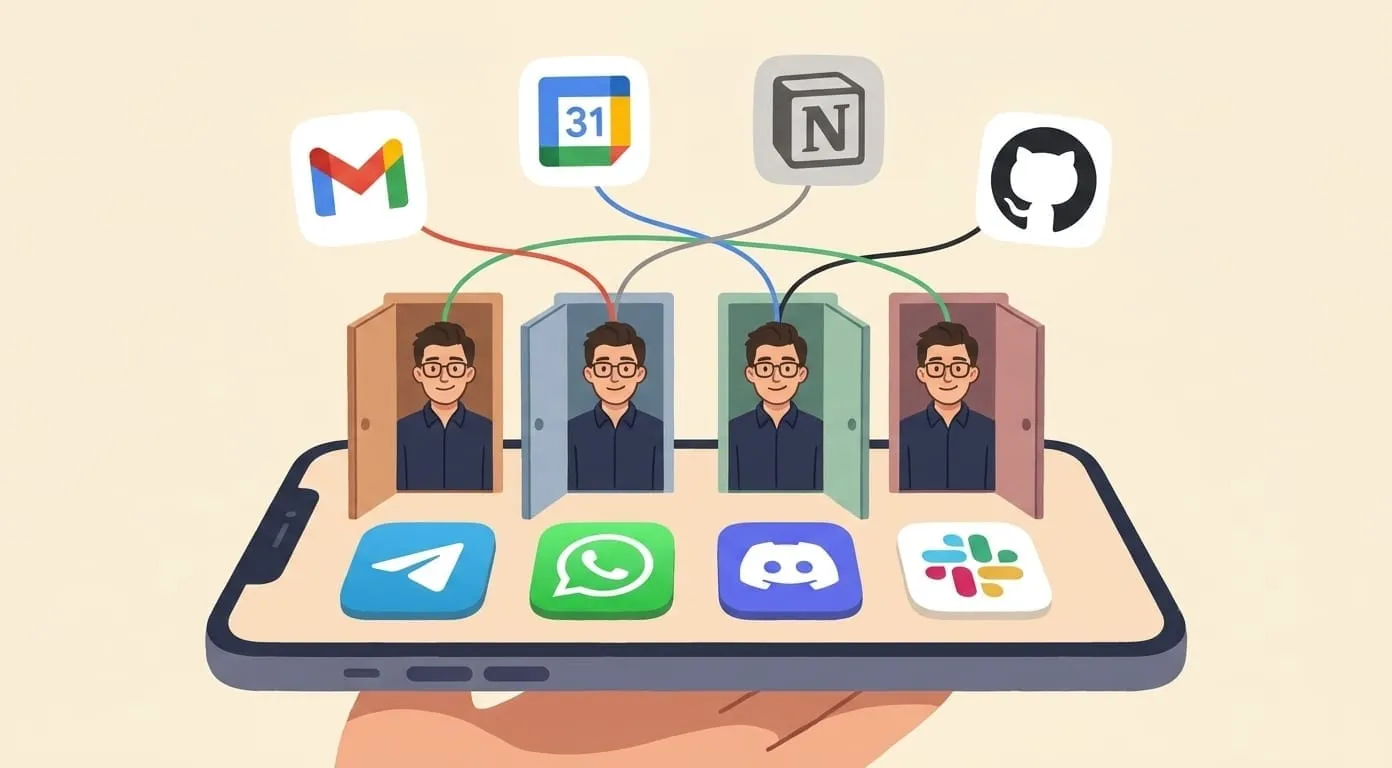
Click it. Google's standard OAuth consent screen pops up. You'll be asked to grant access to a few services: Gmail (for sending meeting invites and reading confirmations), Calendar (obviously), Drive, Contacts, Sheets, and Docs. These are all part of the Google Workspace integration. You don't have to use all of them for scheduling, but the connection covers the full suite so you won't need to re-authorize later when you want the agent to, say, pull a document or look up a contact's email.
After you approve, the dashboard shows a status indicator. It goes through three stages: pending, activating, and active. The whole thing usually takes under a minute. Once it says "active," your Google account is connected and the agent can access your calendar.
One note: this uses OAuth, not an API key or service account. That means the agent acts as you. Events it creates show up under your name. Invites come from your email. This is a good thing for scheduling because your attendees see a real invite from a real person, not some bot address they don't recognize.
You can verify the connection works by messaging your agent (on whichever channel you've set up) and asking something simple: "What's on my calendar today?" If it comes back with your actual events, you're good. If it says it can't access your calendar, double-check that the setup flow completed. The status on the `/google-setup` page should say "active."
For the full list of what the Google integration can do beyond calendar, check the integrations page.
Step 2: Understand what the agent can do with your calendar
Before you start throwing scheduling requests at the agent, it helps to know what's actually possible. The agent uses two skills for meeting-related work:
The first is the "Gog" skill. This is the Google Workspace skill that handles all direct Google operations: reading calendar events, creating events, updating them, looking up contacts, sending emails. Think of it as the agent's hands for anything Google.
The second is Meeting Autopilot. This is a higher-level skill that handles meeting workflows. Where Gog does the mechanical work (create an event at 3pm on Tuesday), Meeting Autopilot handles the logic around it (find a time that works for both of us next week, send the invite, and remind me an hour before).
Together, they cover the common scheduling scenarios:
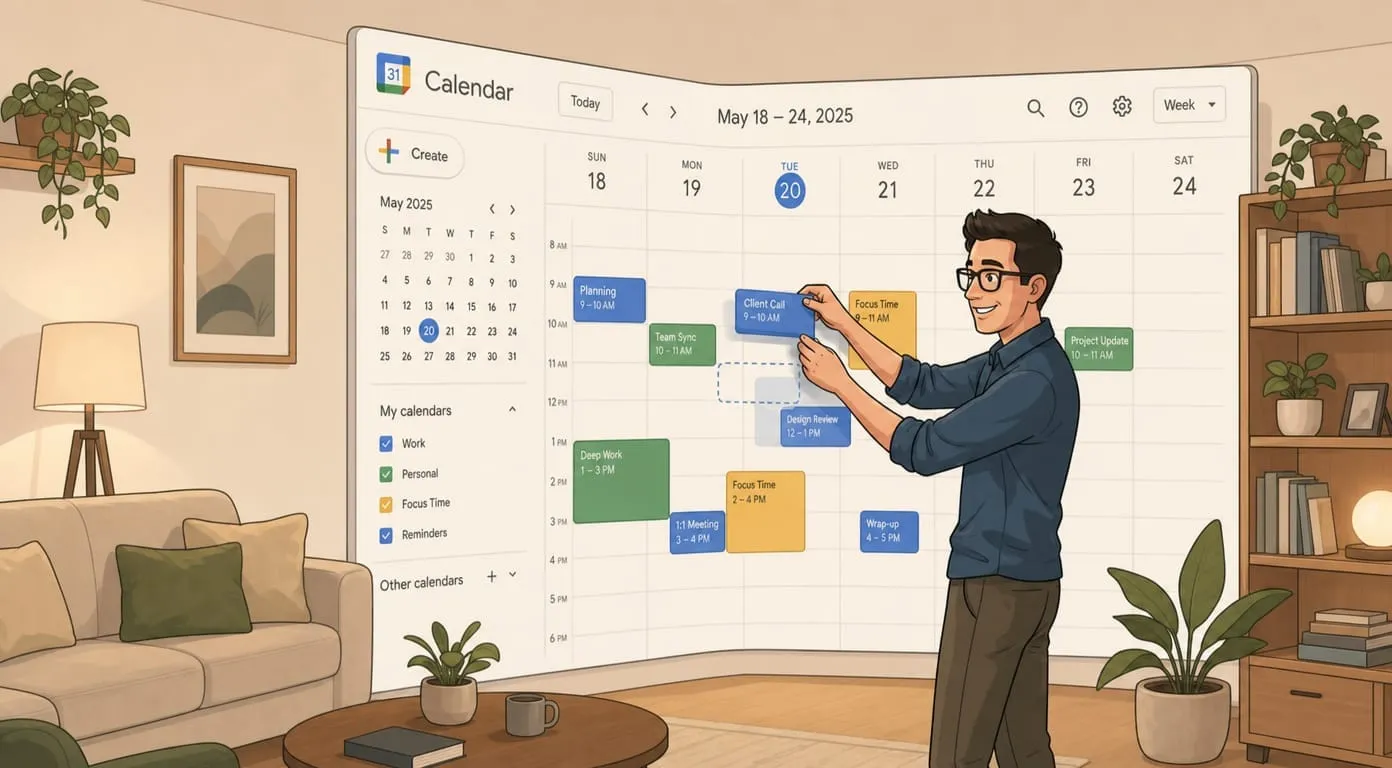
Checking your availability for a given day or week. Creating new events with a title, time, and attendees. Finding open slots when you need to propose meeting times. Sending calendar invites via email. Updating or rescheduling existing meetings. Setting up recurring calendar checks (using Scheduled Tasks) to, for example, give you a morning briefing of what's on your plate today.
The agent also has access to Cloud Transcription (powered by the Whisper API), which means if you send a voice note saying "schedule a call with Sarah next Thursday at 2," it'll transcribe it and act on it. More on that later.
Step 3: Run your first scheduling request
Alright, Google's connected, the skills are ready. Let's do something with it.
Open your messaging channel (Telegram, WhatsApp, Discord, or Slack) and send a message to your Amplify agent. Start simple:
"Schedule a meeting with [email protected] tomorrow at 10am. Title it Project sync."
Here's what happens behind the scenes: the agent picks up your message, recognizes it as a scheduling request, checks your calendar for conflicts at that time, creates the event, and sends an invite to the email address you specified. You get a confirmation message back in the chat.
If there's a conflict (you already have something at 10am), the agent tells you. It might suggest the next available slot, or ask you whether you want to double-book. It doesn't just silently overwrite your existing event.
Try a few more variations to get comfortable:
"What does my Thursday look like?" This returns a summary of your events for that day, with times and titles.
"Find a 30-minute slot for a call with [email protected] sometime next week." The agent looks at your calendar, finds open windows, and proposes options. You pick one, and it books it.
"Move my 2pm meeting to 3:30pm." The agent finds the event at 2pm, updates the time, and notifies attendees if there are any.
Each of these uses a slightly different combination of calendar reading, event creation, and event modification. Running through them now means you won't be surprised when you use them for real meetings later.
Step 4: Set up recurring calendar checks
One-off scheduling is useful, but the real time savings come from automation. Amplify supports Scheduled Tasks (cron-based), which means you can have the agent check your calendar on a regular basis and report back.
The most common setup is a morning briefing. Ask your agent:
"Every weekday at 8am, check my calendar for today and send me a summary."
The agent creates a scheduled task that fires at 8am Monday through Friday. Each morning, it reads your calendar for the day, formats a summary (times, titles, attendees), and sends it to you over your connected channel.
You can get more specific. A few examples of scheduled tasks people actually use:
A daily 8am briefing of today's meetings. A Friday afternoon summary of next week's schedule. A 15-minute-before reminder for every meeting (yes, Google Calendar has its own reminders, but some people prefer getting it right in their Telegram chat). An end-of-day check for any meetings that were added or changed during the day.
These run automatically. You set them up once and they keep going. If you want to change or cancel one, just tell the agent: "Cancel my morning briefing task" or "Change my morning briefing to 7:30am."
Step 5: Handle multi-person scheduling
Scheduling gets harder when more people are involved. Let's walk through the common scenarios.
For a two-person meeting where you know the other person's availability constraints, you can say: "Find a 45-minute slot for a call with [email protected]. She's usually free after 2pm." The agent checks your calendar, looks for openings after 2pm, and proposes times. You pick one, it sends the invite.
For group meetings, you provide the attendee list: "Schedule a team standup with [email protected], [email protected], and [email protected]. 15 minutes, Monday Wednesday Friday at 9:30am." The agent creates a recurring event and sends invites to everyone.
Here's where it's worth being honest about limitations. The agent can see your calendar because you've connected your Google account. It can't see other people's calendars unless they've also shared them with you through Google's standard sharing settings. So when you say "find a time that works for everyone," the agent checks your availability and proposes options, but it can't automatically verify that 3pm is clear for Dana. You'll still need a back-and-forth for external people.
That said, the agent handles the back-and-forth well. It proposes times, you relay them, someone picks one, you tell the agent, and it books it. The repetitive work of looking at your calendar, composing options, and creating the event still goes away.
Step 6: Use voice notes for scheduling
If you're on mobile or just don't feel like typing, you can send a voice message instead. Amplify's Cloud Transcription (built on the Whisper API) converts your voice note to text, and the agent processes it from there.
So instead of typing "Schedule a meeting with the marketing team next Tuesday at 11am," you can just say it. The agent transcribes the voice note, extracts the scheduling intent, and handles it the same way it would a text message.
This works across all channels that support voice messages. Telegram and WhatsApp both have native voice note support, so it's a natural fit there. Just hold the mic button, say what you need, and send.
A practical use case: you're walking to lunch and remember you need to set up a call. You pull out your phone, open Telegram, send a 5-second voice note to your Amplify agent, and it's done by the time you sit down. No switching apps, no typing while walking.
The transcription is fast and generally accurate. It handles names, times, and dates well. If it mishears something, the agent sends back a confirmation before creating the event, so you can catch errors.
Step 7: Teach the agent your preferences
Amplify agents have persistent memory. That means the more you use it for scheduling, the better it gets at predicting what you want.
If you always schedule internal meetings for 30 minutes, the agent starts defaulting to 30 minutes when you don't specify a duration. If you never take meetings before 10am, it learns to skip morning slots when proposing times. If you always add a Google Meet link to your calls, it remembers that too.
You can also tell the agent your preferences explicitly:
"I prefer meetings between 10am and 4pm." "Always add a video call link to meetings with external people." "Default meeting length is 25 minutes unless I say otherwise." "Don't schedule anything on Fridays after 2pm."
The agent stores these preferences in its memory and applies them going forward. You don't have to repeat yourself. This is one of those features that doesn't seem like a big deal in the first week but saves real friction over months.
And because Amplify's memory is persistent across channels, preferences you set over Telegram also apply when you message the agent on Slack or WhatsApp. It's the same agent, same memory, regardless of where you talk to it.
Troubleshooting common issues
A few things that come up during setup:
"The agent says it can't access my calendar." Go back to your dashboard, check the Google integration status at `/google-setup`. If it shows anything other than "active," try disconnecting and reconnecting. The OAuth token might have expired or the authorization might have been incomplete.
"Events are created at the wrong time." Check your timezone settings in Google Calendar. The agent uses whatever timezone your calendar is set to. If you recently traveled or your Google account is set to a different zone, that's usually the issue.
"The agent created a meeting but no invite was sent." Make sure you included an email address for the attendee. If you just said "schedule a meeting with Sarah" without an email, the agent creates the event on your calendar but can't send an invite because it doesn't know where to send it. Either provide the email or make sure Sarah is in your Google Contacts so the agent can look her up.
"Voice notes aren't being transcribed." Voice transcription requires the Cloud Transcription skill to be active. This should be available by default, but if you're having issues, check the skills page to confirm.
"Scheduled tasks aren't firing." Scheduled Tasks use cron under the hood. Make sure the task was actually created by asking the agent to list your active scheduled tasks. If it's there and still not firing, check the timezone. A task set to 8am fires at 8am in the configured timezone, which might not be your local time.
What comes next
Once you've got basic scheduling working, there are a few things worth exploring:
Combine scheduling with email. "Check if anyone emailed me requesting a meeting and propose times." The agent reads your Gmail (remember, that's part of the same Google integration), finds scheduling-related emails, and drafts responses with your available slots.
Use it for meeting prep. "Summarize the last three emails from [email protected] before my 2pm call with her." The agent pulls the email thread and gives you a quick brief.
Build a full morning routine. "Every weekday at 8am: give me my calendar for today, flag any meetings with external people, and list emails I haven't responded to." One scheduled task, three useful outputs.
The meeting scheduling setup is a starting point. The real value builds over time as you layer on more workflows and the agent learns how you work. The setup itself takes maybe 15 minutes. After that, it runs on its own.