How to Set Up an AI Assistant in WhatsApp (Step-by-Step)
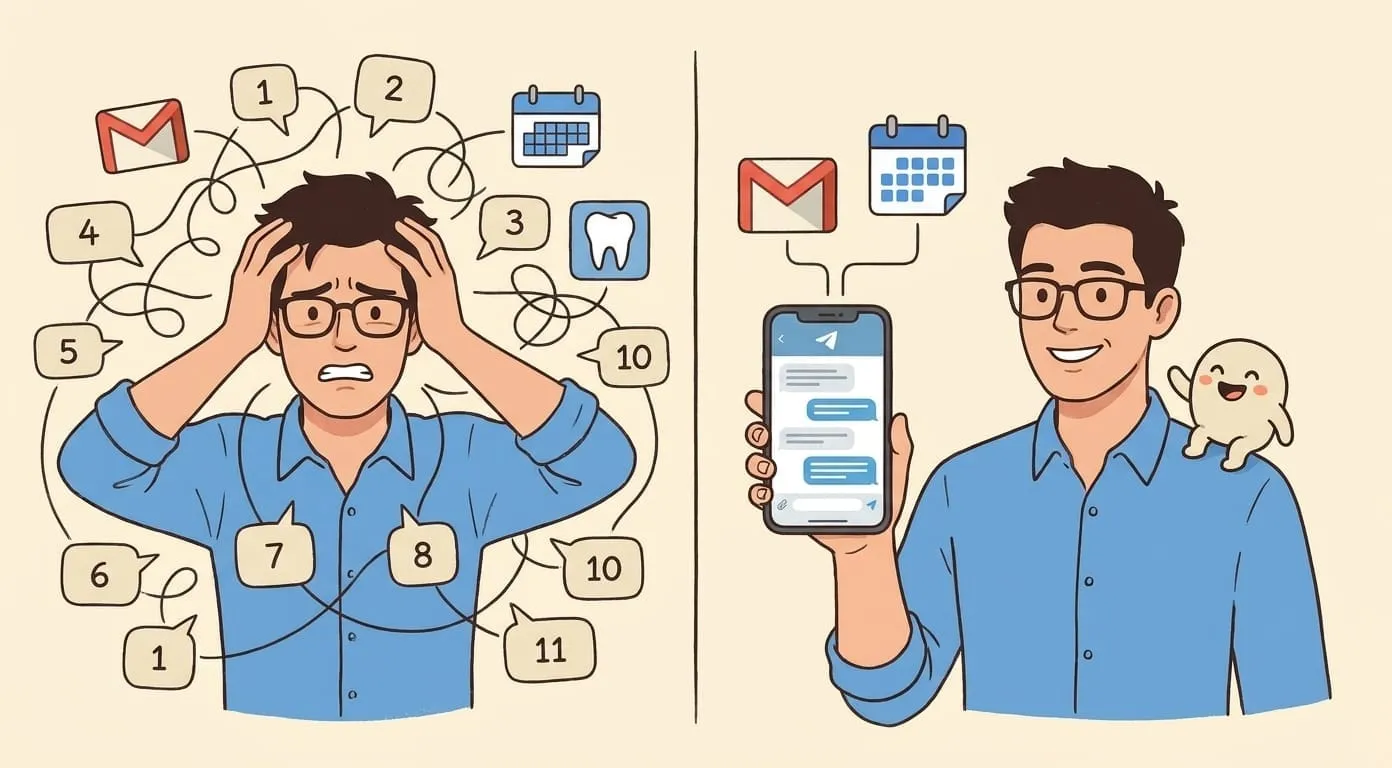
You can have a personal AI assistant directly in WhatsApp — no new apps, no browser tabs. Here's how to set it up with Amplify in under five minutes.
You can have a personal AI assistant directly in WhatsApp – no new apps, no browser tabs, no switching between tools. Send a message in WhatsApp, get an intelligent response back. Here's how to set it up with Amplify in under five minutes.
What You'll Get
Once set up, your WhatsApp AI assistant can:
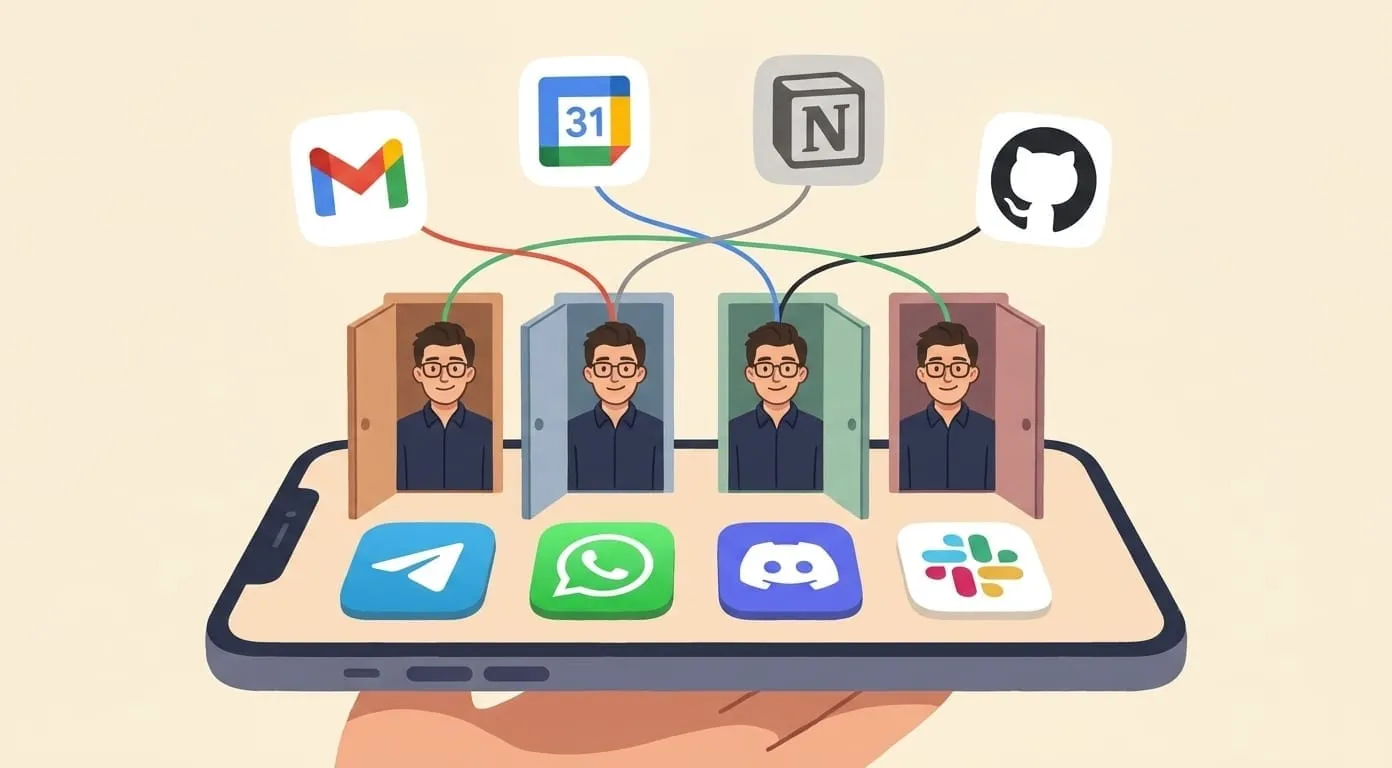
Your assistant is the same across all channels. Message it in WhatsApp now, continue the conversation in Telegram later – it remembers everything.
What You Need
Step-by-Step Setup
Step 1: Create Your Amplify Account
Go to getamplify.team and sign up. You'll pay the $9.99 monthly platform fee and add a minimum $3 usage deposit. The deposit covers actual AI usage – it never expires and you can top it up anytime.
Step 2: Open Channel Settings
Once logged in, go to your Dashboard. Navigate to Channels in the sidebar. You'll see all available messaging channels: WhatsApp, Telegram, Discord, and Slack.
Step 3: Connect WhatsApp
Click WhatsApp. You'll see a QR code. Open WhatsApp on your phone, go to Settings → Linked Devices → Link a Device, and scan the QR code.
That's it – your AI assistant is now connected to WhatsApp.
Step 4: Send Your First Message
Open WhatsApp and find the Amplify assistant in your chats. Send a message – anything:
You'll get a response within seconds.
Step 5: Enable Skills
Your assistant has modular skills you can enable from the Dashboard:
Go to Dashboard → Skills and enable the ones you need.
Five Things to Try First
1. Summarize a Document
Forward a PDF, document, or link to your assistant:
"Summarize this in 3 bullet points"
The assistant extracts key information and gives you a concise summary. Works with PDFs, web links, and pasted text.
2. Generate an Image
"Generate a professional headshot-style photo of a modern office space with natural lighting"
The assistant creates an image and sends it right in the WhatsApp chat. You can request edits: "Make it warmer" or "Add a plant in the corner."
3. Check Your Calendar
After connecting Google Workspace:
"What's on my calendar today?"
"Do I have anything scheduled for Thursday afternoon?"
"Remind me about the client call at 2pm"
4. Send a Voice Message
Record a voice message in WhatsApp. The assistant transcribes it and responds to the content. Useful when you're walking or driving and can't type.
5. Set Up a Morning Briefing
From the Dashboard, enable the Morning Briefing skill and set a schedule. Every morning, your assistant sends you a WhatsApp message with:
Cost: about $0.01 per briefing.
Tips and Tricks
Voice messages work both ways. Send a voice message → assistant transcribes and responds. Ask the assistant to generate audio → it sends a voice clip back using ElevenLabs.
Forward messages for context. Forward a message from another chat to your assistant: "What does this mean?" or "Draft a reply to this."
Group chat support. You can add the assistant to a WhatsApp group. It responds when mentioned or addressed directly, staying quiet otherwise.
Files and attachments. Send photos for analysis, PDFs for summarization, or documents for review. The assistant processes them and responds in chat.
Cross-channel continuity. If you also connect Telegram or Discord, your assistant shares memory across all channels. Start a conversation in WhatsApp, continue it in Telegram – it remembers.
What It Costs
All costs include 7.5% service fee. A typical light user spends ~$25/month total. Your deposit never expires – quiet months cost less.
BYOK option: Connect your own OpenAI API key and pay LLM costs directly. Your Amplify deposit then only covers non-LLM services (media, search).
Frequently Asked Questions
Yes, connecting WhatsApp is included in the $9.99/month platform fee. There's no extra charge for the channel itself — you only pay for AI usage (messages, images, search, etc.).
Amplify never trains on your data. Your messages are processed to generate responses but aren't stored for model training. Integration tokens are encrypted per-client, and the database is EU-hosted (GDPR compliant).
Yes. Add the assistant to a group and it responds when addressed. It stays quiet during normal group conversation and only participates when you explicitly involve it.
Your assistant pauses until you top up. No unexpected charges. You can set up auto-top-up from the Dashboard if you prefer uninterrupted service.
For detailed channel setup documentation, visit getamplify.team/whatsapp-setup.