How to Make ChatGPT Send Emails for You, Without Losing Control
ChatGPT can draft an email in seconds. Getting it into your inbox, checked, and sent is where most of the work still lives. Here's how to close that gap without giving up control.
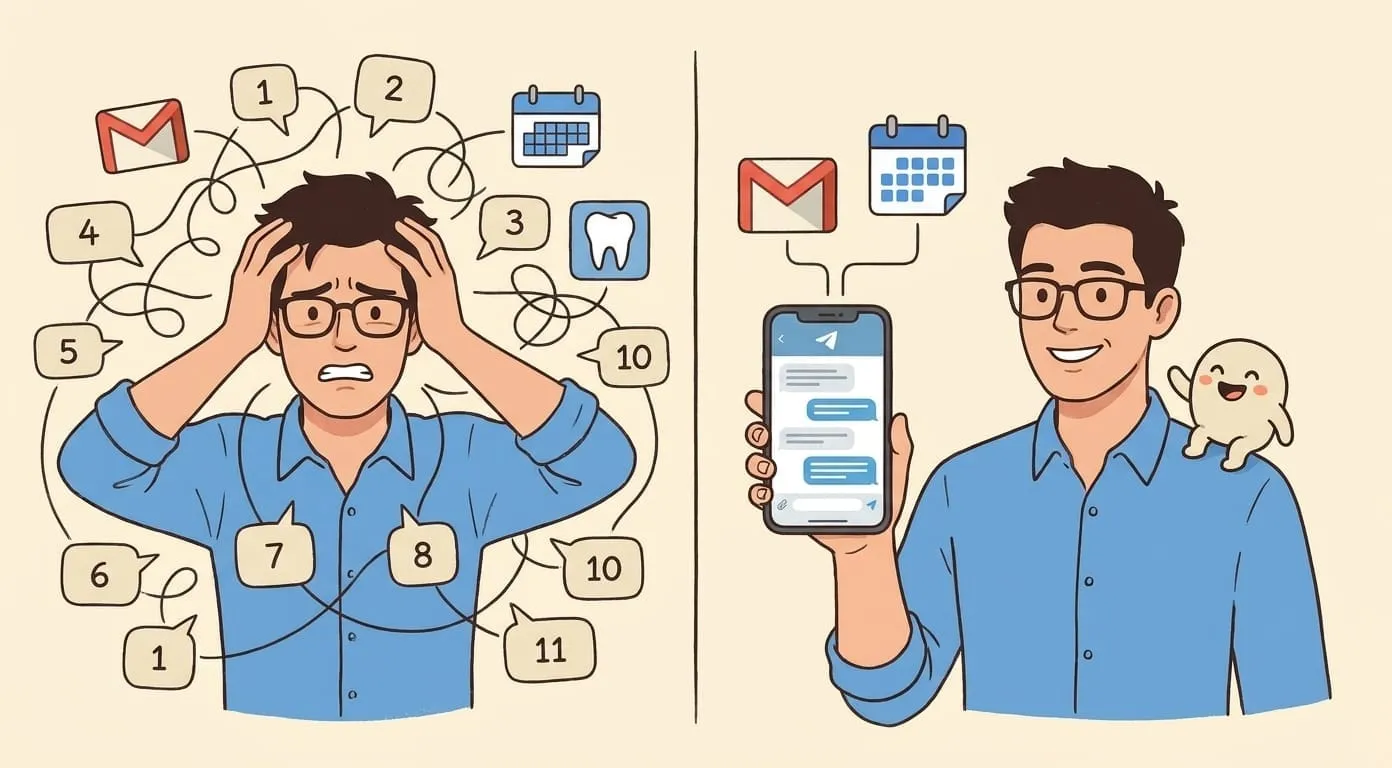
You've been there. You ask ChatGPT for a reply to a tricky email. It gives you something reasonable in five seconds. You copy it out, paste it into Gmail, tweak two sentences, check the tone, remember you meant to attach the deck, hunt for the deck, attach it, then hit send. It took eight minutes. The draft took five seconds.
The draft was the easy part. Everything around it (finding the thread, matching the tone, adding context, deciding whether to send, actually sending) is where the work lives.
Can ChatGPT actually send an email?
Sometimes. Depending on your account, plan, and which connectors are enabled in ChatGPT, it can integrate with Gmail through the Google Workspace connector. It'll read your messages when you ask, and in some setups it'll draft replies you can send. Whether it can send without an extra confirmation, and how consistently, depends on the exact combination you're on. That story keeps moving.
What none of that gives you is a persistent assistant that watches your inbox on its own and gets email work done in the background. ChatGPT is still primarily a place you go to when you have a question. Your inbox is a place things happen while you're doing something else. Those don't line up.
The gap between "draft" and "handled"
If you break down what a person actually does when they handle an email, it looks like this:
A drafting tool covers step 5. Sometimes step 4 if it's smart. The other seven steps are still yours.
That's the actual "email problem." Not writing. Everything else.
What an assistant that closes the gap looks like
The version that saves real time is one that lives where you already talk (a messenger, not a browser tab), reads your Gmail with your permission, remembers who your contacts are and what you've discussed, and can send from your account when you say to.
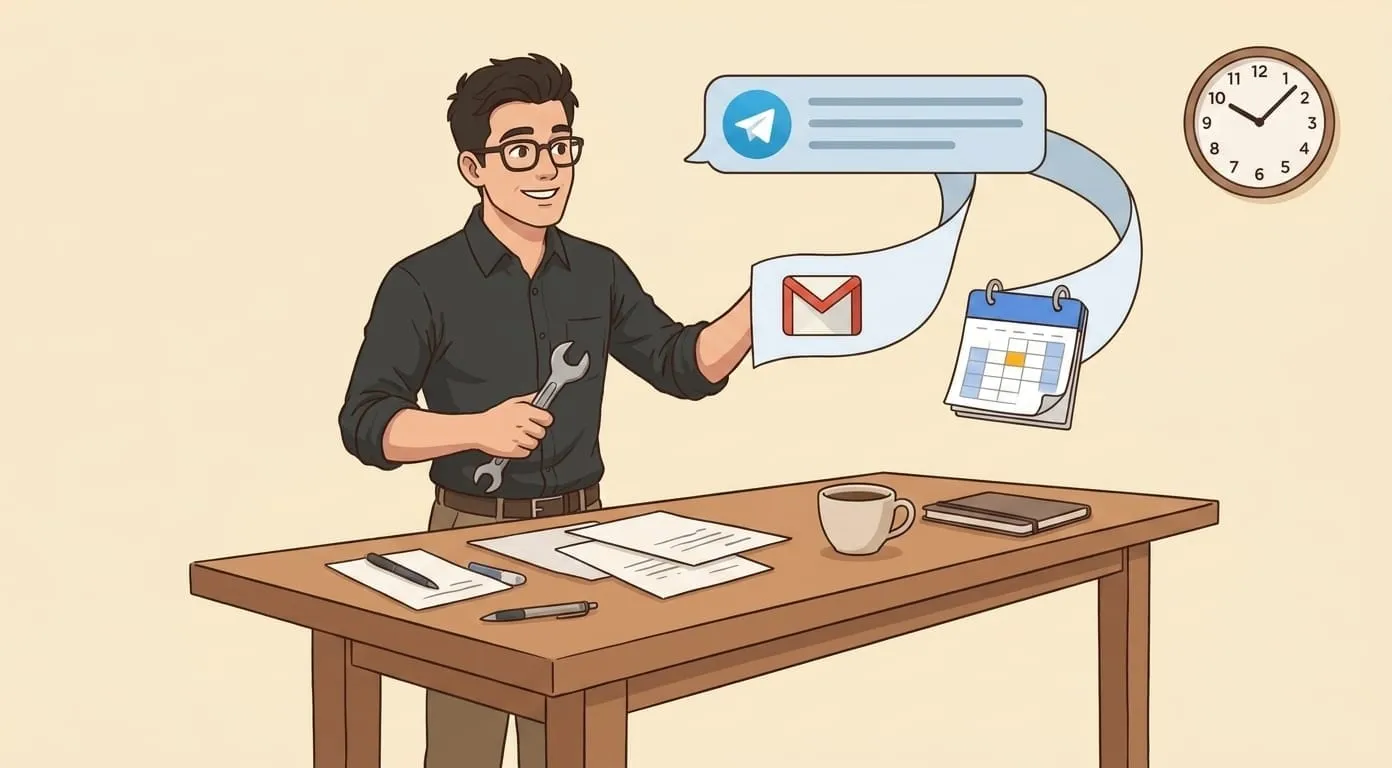
It looks like this in practice: you're on a walk. You dictate into Telegram, "Reply to Sarah about the demo. Confirm Thursday at 2, ask if she wants the security deck ahead of time." Fifteen seconds later, the assistant shows you a two-paragraph draft matching your usual register, asks whether to send. You say "send." It sends from your Gmail. It also creates a calendar hold for the follow-up.
Three things had to be true for that to work. It has to sit in the channel you're already in. It has to have access. It has to be willing to actually send, instead of stopping at "here's what I would send."
Set it up in 10 minutes
Amplify is a personal AI agent that runs in your messenger, connects to your Gmail, and asks for approval on anything sensitive. Setup is short:
First run takes a few conversations to get the rules right. Expect a week of tuning.
That's it. Next time an email needs a reply, dictate what you want and confirm. The email goes out from your account, in your writing style, with the attachments you asked for.
Five email jobs it handles well
Post-meeting follow-ups. "Send Sarah the action items from today's call. We agreed on the March timeline and I'm sending the contract by Friday." The assistant pulls the thread history, drafts the recap, waits for your approval, sends.
Introductions. "Send an intro connecting Sarah and Mike. Both work on developer tools. CC me." The draft includes a sentence about each side. You approve, it sends.
Nudges on stalled threads. "Check if the client responded to my proposal from last Tuesday. If not, send a polite follow-up asking if they need more information." Reads the thread, sees no reply, drafts something that doesn't sound pushy.
Scheduling confirmations. "Confirm the Thursday call with the design team, propose a Zoom link, and add it to my calendar." One request, three actions.
Invoice and payment reminders. "Remind the two clients whose invoices are overdue. Keep it professional." Reads the invoice tracker, drafts personalized reminders per client, waits for approval.
The pattern is the same: you say what you want in one line, the assistant does the surrounding work, you approve.
When approval should be required (not optional)
Approval is a feature. If your assistant sends anything without asking, at some point it'll send the wrong thing to the wrong person, and you'll spend a week rebuilding trust with a customer.
The rules that keep this from being annoying:
Set these once. Adjust after a week of use. The system gets quieter as it learns what you'll approve without thinking.
Build a proactive email assistant with Amplify
Amplify is built on OpenClaw, an open-source AI agent framework. Your data stays isolated per client (no shared context between users), and you're not paying a fixed subscription for a heavy month you didn't have. It's $9.99 per month for the platform, and the model usage is pay-per-use on top. If you send fifteen emails through it in a slow week, the bill for that week is small. If you send two hundred, you pay for two hundred.
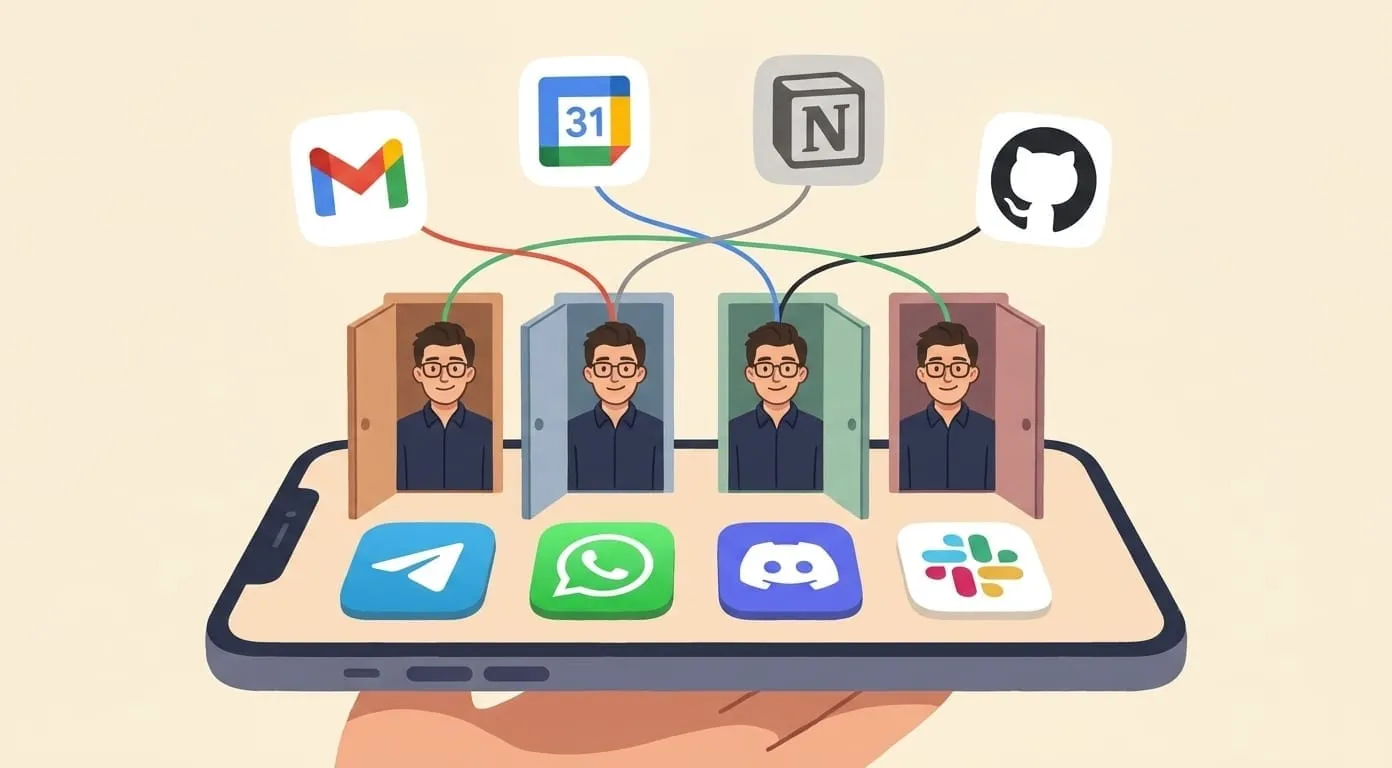
You can start with just email and add other integrations later (Calendar, Drive, Notion, GitHub). The assistant is the same one across channels, with shared memory.
What this doesn't do
This isn't cold outreach or mass email. It's not a marketing sequencer, and it's not going to replace a CRM. If you need to send the same message to five thousand people with tracked opens, that's a different tool.
It also isn't an autopilot. Even with pre-approved patterns, you're the one who initiates the work. The assistant doesn't wake up and decide to email your customers on its own. It waits for you to ask, or for a stalled-thread rule to fire, and then it drafts something for you to sign off on.
The gain is quieter than most AI email demos suggest. Not "email zero in one click." More like: the eight-minute round trip becomes forty-five seconds. Ten of those a day is an hour of your life back. Over a quarter, it's a week.
That's the actual pitch. Not "AI writes your emails." AI handles the surrounding busywork so you can send the email you would have sent anyway, from wherever you happen to be.