How to Generate Images with Your AI Assistant (From Chat to Final Visual)
Four image models, one chat interface: generate and edit visuals without leaving your messenger
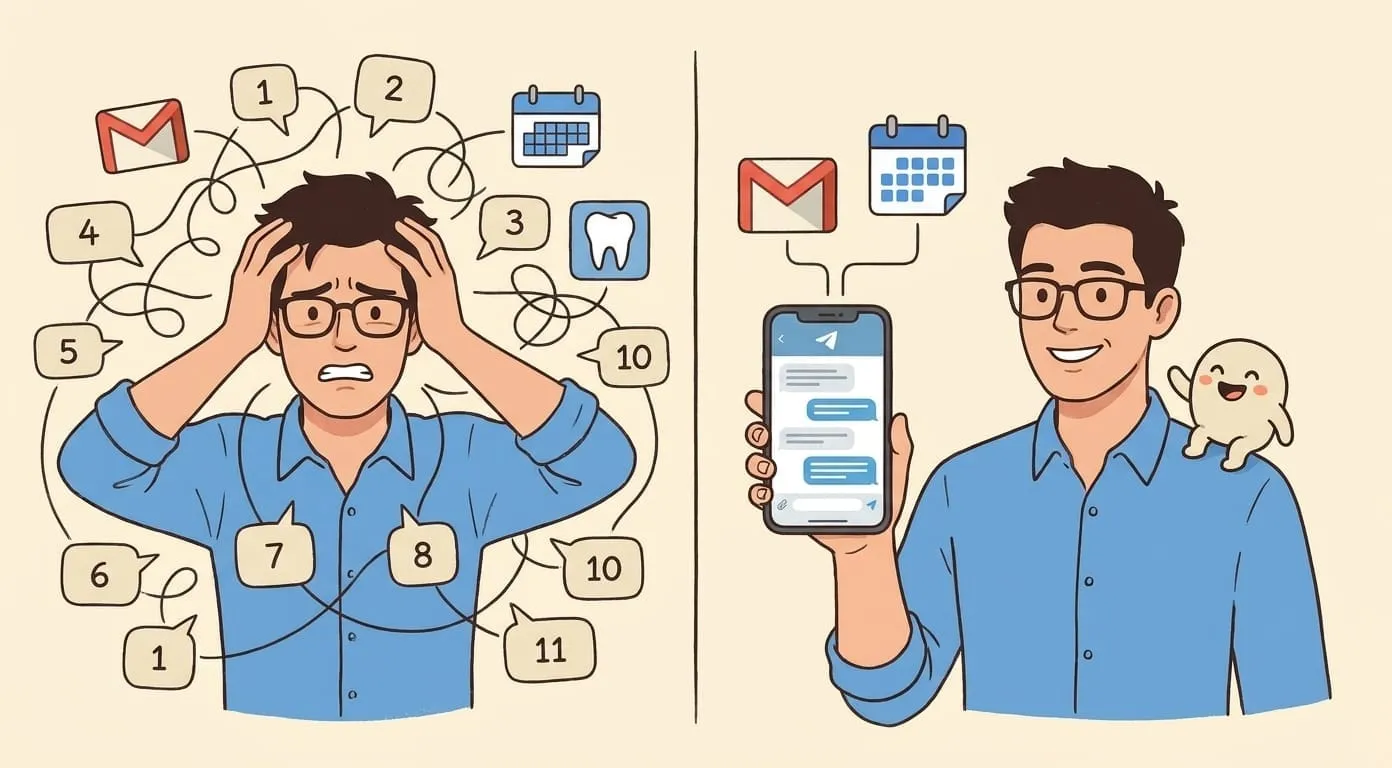
You type a sentence. Your AI assistant sends back a finished image, right there in the chat. No extra apps, no browser tabs, no export-import dance. That's how image generation works inside Amplify, and this guide will walk you through every step, from your first prompt to a polished result you're actually happy with.
If you've read our overview of AI media generation (Field Notes #31), you already know the basics. This article goes deeper. We'll cover which models are available, how to write prompts that get you closer to what you want on the first try, and how to iterate when the result isn't quite right.
What You Need Before You Start
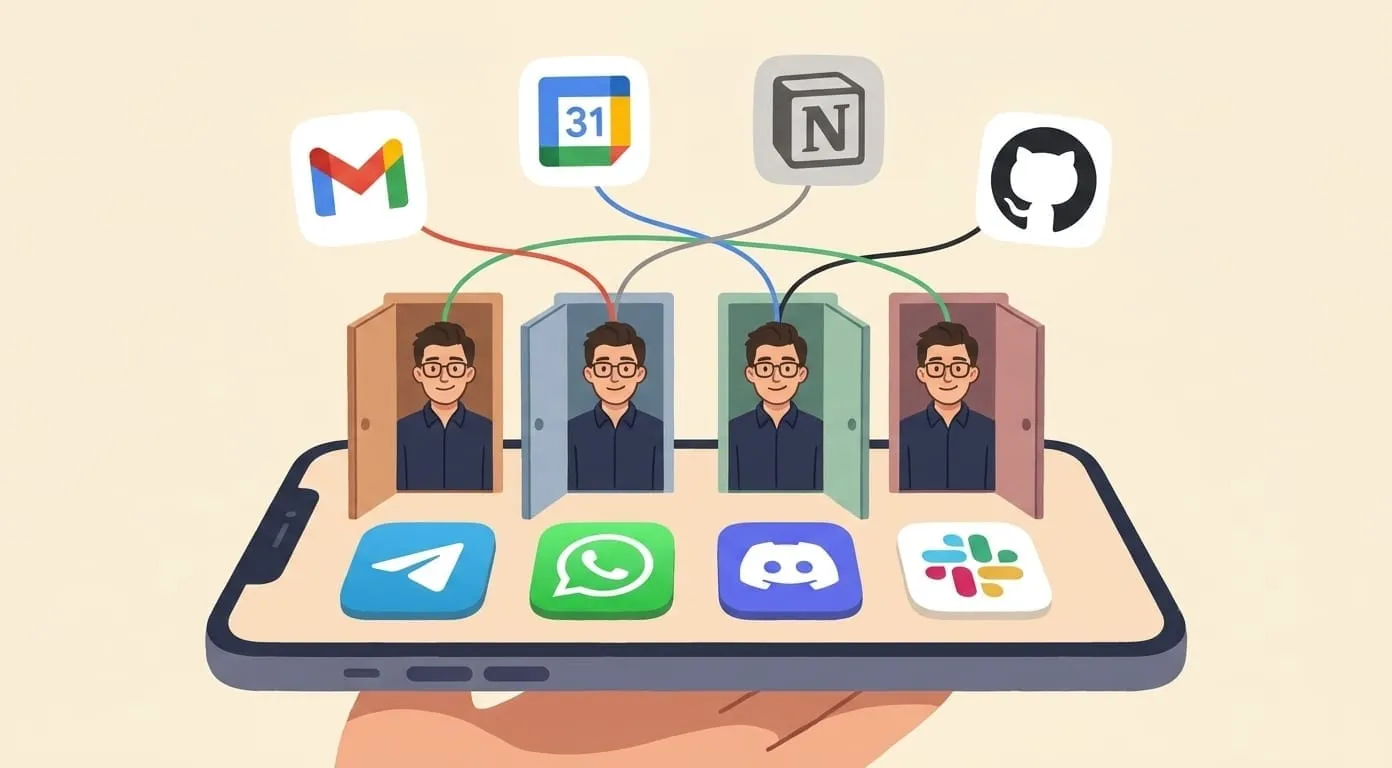
You need an Amplify agent connected to a messenger. Telegram, WhatsApp, Discord, Slack. Any of them work. If you haven't set one up yet, head to getamplify.team and follow the onboarding flow. Amplify runs on OpenClaw, an open-source framework, so the entire media pipeline is transparent. Setup takes a few minutes.
You also need a wallet deposit. Image generation is billed per generation from your balance. There are no separate image credits, no subscription tiers for media, no hidden fees. You deposit funds, your agent generates images, the cost gets deducted. Simple.
Once your agent is live in a messenger channel and your wallet has funds, you're ready.
The Models You Can Use
Amplify's Media Stack gives you access to several image generation models. Each one has different strengths.
Nano Banana is the default. When you ask your agent to generate an image without specifying a model, this is what runs. It's synchronous, meaning you send a prompt and get the image back in the same conversation flow without waiting for a callback. For most everyday image requests, Nano Banana does the job well.
GPT Image runs on OpenAI's infrastructure. Also synchronous. It handles complex scene compositions and tends to follow detailed instructions closely. If you need an image with specific spatial relationships between objects or a particular artistic style, GPT Image is worth trying.
Flux Image needs to be requested explicitly. It won't activate by default. What makes Flux stand out is its Kontext edit mode, which lets you take an existing image and modify it using text prompts. We'll get into that later, because it changes how you think about iteration.
Seedream Image also requires explicit selection. It's another option in the stack, and depending on the subject matter, it may produce results that better match what you're after. The best way to find out is to try it.
All of these models are listed on the Amplify skills page, along with video generation (Kling Video, Seedance Video), voice generation through ElevenLabs, and other content creation tools.
Your First Image Prompt
Open your messenger. Send your agent a message like this:
> Generate an image of a golden retriever sitting on a park bench, autumn leaves on the ground, soft afternoon light
That's it. Your agent recognizes the request, sends it to the image model, and delivers the result directly in your chat. No file downloads, no links to external galleries. The image appears in the conversation like any other message.
Here's what you'd get back: a photo-realistic or stylized image (depending on the model) showing roughly what you described. A dog, a bench, autumn setting, warm light. The specifics will vary with each generation because these models have a degree of randomness built in.
Try another one:
> Create a flat illustration of a coffee cup with steam rising, minimalist style, white background
This time you're specifying an artistic style. The model picks up on "flat illustration" and "minimalist" and adjusts accordingly. The result should look more like a design asset than a photograph.
Writing Better Prompts
The gap between a mediocre result and a great one usually comes down to the prompt. Here's what actually helps.
Be specific about composition. "A cat" gives the model almost nothing to work with. "A tabby cat curled up on a windowsill, rain visible through the glass, indoor lighting, close-up angle" gives it a scene to construct. The more spatial and contextual detail you provide, the closer the output gets to what you're imagining.
Name the style early. If you want watercolor, say "watercolor painting of..." at the start of the prompt. If you want photorealistic, say that. Models weight the beginning of prompts more heavily than the end, so front-load the important qualifiers.
Mention lighting. This is one of the most overlooked parts of image prompting. "Harsh midday sun" produces a completely different mood than "overcast diffused light" or "neon glow from a sign." Lighting sets the entire emotional register of an image.
Specify what you don't want. If you keep getting images with text overlaid on them and you don't want that, say "no text, no watermarks." If people keep appearing in your landscape shots, say "empty scene, no people." Negative instructions work.
Here's an example that puts it all together:
> Generate an image: digital painting of an abandoned space station orbiting a gas giant, derelict and overgrown with alien plant life breaking through the hull, wide angle view, moody blue-green color palette, no text
That prompt gives the model a subject (space station), a condition (abandoned, overgrown), a composition (wide angle), a color direction (blue-green), and an exclusion (no text). You'll get something much more specific than "space station in space."
Choosing a Specific Model
By default, your agent uses Nano Banana for image generation. If you want to use a different model, just say so in your message.
> Generate an image using GPT Image: a detailed architectural cross-section of a medieval castle, technical illustration style
Or:
> Use Flux to create an image of a neon-lit Tokyo alley at night, rain reflections on the ground, cinematic framing
The agent understands model selection from natural language. You don't need slash commands or special syntax. Just mention the model name in your request.
When should you switch models? If the default output isn't matching your expectations after a couple of tries, that's a good time to experiment. Different models interpret the same prompt differently. A prompt that produces something generic on one model might look striking on another.
Iterating on Results
The first generation rarely nails exactly what you want. That's normal, even for people who write prompts professionally. The real skill is in iteration.
Refine the prompt. Look at what the model gave you and identify what's off. Too dark? Add "bright, well-lit" to the prompt. Wrong angle? Specify "bird's eye view" or "low angle shot." Wrong style? Be more explicit about the aesthetic you want. Each round of refinement gets you closer.
Try the same prompt again. Because generation involves randomness, the same prompt can produce noticeably different results on a second run. If the composition was right but the details were off, just ask again. You might get something better without changing a word.
Use Flux Kontext for edits. This is where things get interesting. Flux's Kontext edit mode lets you take an image you've already generated and modify specific parts of it with text instructions. Instead of starting over from scratch, you can say something like:
> Edit this image: change the sky to sunset colors and add a flock of birds in the upper right
Kontext processes your existing image alongside the text instruction and produces a modified version. This is enormously useful when you've got 90% of what you want and just need to adjust one or two elements. It saves both time and credits compared to regenerating from nothing.
To use Kontext, you need to be working with Flux specifically. Ask your agent to switch to Flux if you aren't already using it, then provide the image you want to edit along with your modification instructions.
Practical Use Cases
Let's walk through a few real scenarios where image generation through your AI assistant actually saves time.
Social media content. You need a header image for a blog post about remote work. Instead of searching stock photo sites for 20 minutes, you type:
> Generate an image of a laptop on a wooden desk by a window overlooking mountains, warm morning light, lifestyle photography style
You get something original in seconds. No licensing concerns, no watermarks to deal with.
Product mockups. You're exploring packaging concepts for a new product. You're not ready to hire a designer yet, you just want to see some directions.
> Create a mockup of a minimalist skincare bottle, frosted glass, sage green label, clean white background, product photography lighting
The output won't replace a professional render, but it gives you something concrete to react to and share with your team.
Presentation visuals. You're building a deck and need a visual metaphor for "growth through collaboration."
> Generate an image: intertwined tree roots growing together underground, cross-section view showing soil layers, botanical illustration style, warm earth tones
That's more specific and more memorable than any stock image you'd find by searching "collaboration."
Real estate. If you work in property, Amplify also has a dedicated Real Estate Photo Enhancer skill that processes property photos specifically. It's separate from general image generation and tuned for that use case.
How Billing Works
Every image generation costs a small amount, deducted from your wallet deposit. The exact cost varies by model, but you can track your balance and see per-generation charges in your account.
There are no monthly image quotas. No "you've used 50 of your 100 images this month" limits. You deposit what you want, use what you need. If you generate 3 images in a month, you pay for 3. If you generate 300, you pay for 300. It scales with your actual usage rather than locking you into a plan.
Beyond Images
Once you're comfortable with image generation, it's worth knowing what else your agent can do on the media side. The same chat interface gives you access to video generation through Kling Video and Seedance Video. You describe a scene, and you get a short video clip back. Voice generation through ElevenLabs handles text-to-speech, sound effects, and even voice cloning.
There are also content creation skills. The AI Text Humanizer rewrites text so it reads naturally. The PPTX Generator builds slide decks from your descriptions. These all live in the same agent, accessible from the same conversation. You don't install plugins or switch between tools.
The full list of available skills is at getamplify.team/skills.
Tips That Actually Matter
After watching many users go through the learning curve, a few patterns stand out.
Start simple. Your first prompt for any new subject should be straightforward. See what the model gives you as a baseline, then add detail in follow-up rounds. Overloading a first prompt with 15 qualifiers often confuses the model more than it helps.
Save prompts that work. When you land on a prompt structure that consistently gives you good results, save it somewhere. You can reuse the structure for different subjects. "Digital painting of [subject], [condition], [camera angle], [color palette], no text" is a template you can fill in over and over.
Don't fight the model's strengths. If a model keeps giving you painterly results when you want photorealism, switch models instead of adding more and more "photorealistic" modifiers. Each model has a natural style range, and working within that range produces better output than trying to force it outside.
Be patient with faces. Human faces are still the hardest thing for image generation models to get right consistently. If you need a portrait, expect to iterate more than you would for a landscape or an object. Specifying "professional headshot" or "portrait photography" helps, but you'll likely need a few rounds.
Getting Started
If you don't have an Amplify agent yet, set one up at getamplify.team. Connect it to whichever messenger you use daily. Fund your wallet. Then open the chat and type your first image prompt.
The whole point of generating images through a chat assistant is that it fits into your existing workflow. You're already in Telegram or Slack or Discord for communication. Now your image generation lives there too. No context switching, no extra logins, no learning a new interface. You type what you want, you get an image back, and you keep going with your day.