Your AI Assistant Is Underperforming. These 5 Rules Fix That
Five habits that turn a mediocre assistant into one you actually rely on
Most people type something into their AI assistant, get a mediocre answer, and assume that's just how it works. I did the same thing for months. Turns out the problem was me the whole time.
Once I changed how I talk to it, the results got dramatically better. I stopped treating it like a search bar and started treating it like a colleague who needs context to do good work.
Here are 5 rules that made the difference.
1. Give context before you ask
"Summarize this PDF" gets you a generic summary. Something you could've gotten from any tool.
"I have a board meeting in two hours and the CEO will ask about Q2 revenue. Summarize this PDF and flag the three numbers I'll need" gets you something you can actually walk into that meeting with.
The difference is one extra sentence. The assistant doesn't know what matters to you unless you tell it. It can't read your calendar, see your face, or hear the stress in your voice. All it has is what you type. So the more you type about why you need something, the better the output gets.
I started adding a single line of context to every request. "I'm writing this for a non-technical audience." "This is for a client who's already frustrated." "I need this in under 100 words." Two seconds of effort. Saves me from rewriting the whole thing.
Here's a real example from last week. I needed to draft a follow-up email after a demo call that didn't go well. My first instinct was "write a follow-up email to the prospect." Instead I typed: "The demo crashed during the pricing screen, the prospect seemed annoyed. Write a follow-up that acknowledges the issue without over-apologizing and gives them a reason to book another call." Night and day difference. The first version would've been a cheerful "great meeting today!" The second actually addressed what happened.
Context doesn't have to be long. Even one sentence about the situation changes the output from "technically correct" to "actually useful."
2. Use memory. Tell it once, stop repeating yourself.
Your assistant has persistent memory. It stores facts about you between conversations. This is probably the most underused feature I've seen.
Tell it things like: "I prefer bullet points over paragraphs." "My timezone is CET." "My weekly team sync is Tuesdays at 10am." Next time you ask about your schedule or need a quick summary, it already has that context. You don't re-explain yourself.
I told my assistant three things during the first week: my role (founder), my communication style (direct, no fluff), and that I hate long emails. Now every draft it writes starts shorter than what most people would get. It's a small thing, but multiplied across dozens of interactions per week, it adds up.
Memory isn't magic though. It works best for stable preferences and facts about your setup. It won't perfectly recall every detail from every conversation you've ever had. But the basics, your name, your role, how you like things formatted? You mostly say them once. That alone kills the repetitive "as I mentioned before" dance that makes people give up on AI assistants entirely.
One thing people miss: you can also tell it about your team. "My cofounder Alex handles product decisions. My ops lead Sarah manages vendor relationships." When you later say "draft something for Alex about the roadmap change," it already knows the relationship and adjusts the tone.
3. One thing at a time
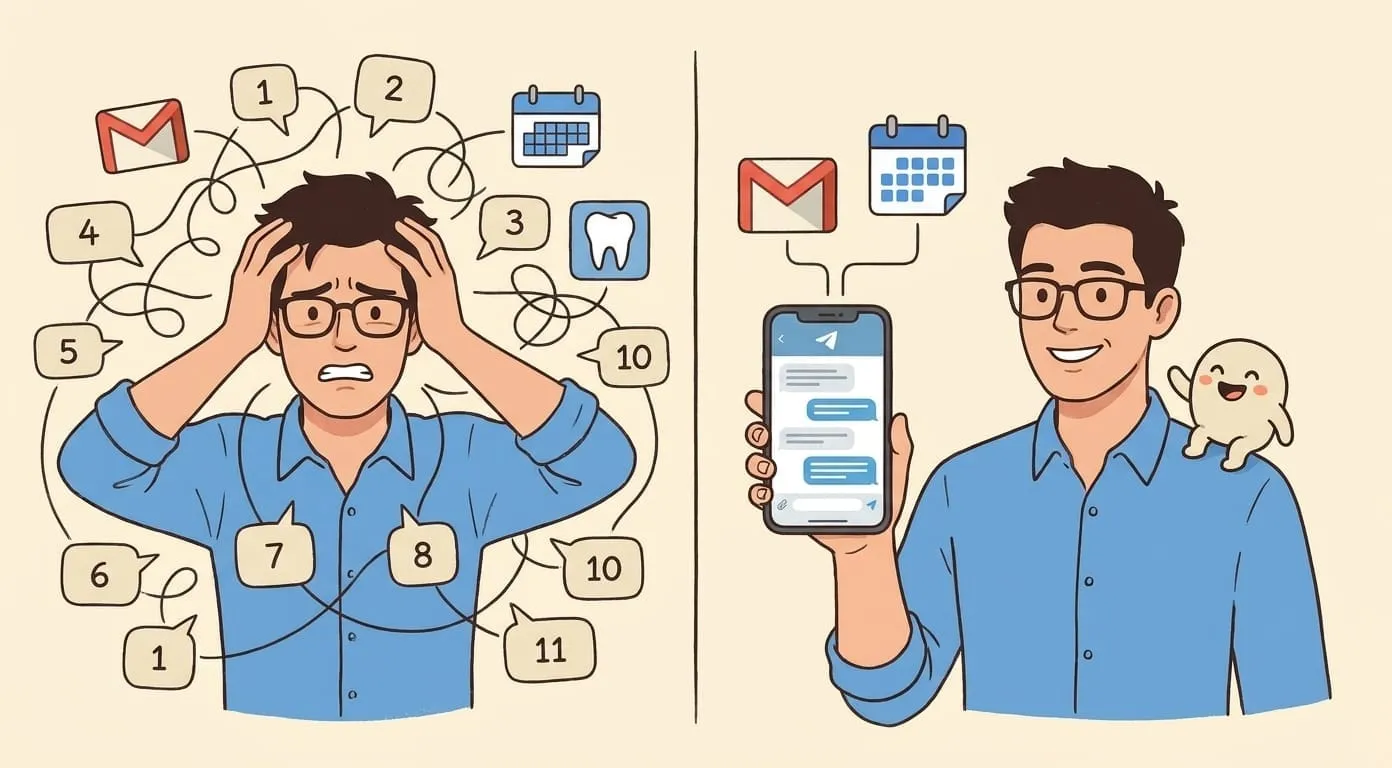
I used to dump five requests into one message. "Check my calendar, draft a reply to John, find a restaurant near the office, and remind me about the dentist." The assistant tries. It really does. But quality drops hard after the second task. The calendar check is fine. The email draft is okay. The restaurant recommendation is vague. And it forgets the dentist entirely.
Now I send them one at a time. Wait for the result, confirm it looks right, then move on. Same way you'd delegate to a colleague. You wouldn't hand someone four sticky notes at once and walk away. Clear handoff, clear confirmation, better output on each one.
This applies to complex tasks too. If you need a presentation outline, don't also ask for speaker notes and a LinkedIn post in the same message. Get the outline right first. Then say "now write speaker notes for slides 3 through 7." Building on confirmed output beats hoping it'll nail everything in one shot.
I've noticed the sweet spot is about two related things per message. "Find free slots this Thursday and draft a meeting invite for the team" works because both tasks share context. "Find free slots and also summarize yesterday's sales report" doesn't, because those are completely separate trains of thought.
4. Connect your tools
An AI assistant without access to your calendar and email is just a fancy text generator. It can write nicely, sure. But it can't tell you what's on your schedule tomorrow or find that attachment from last week.
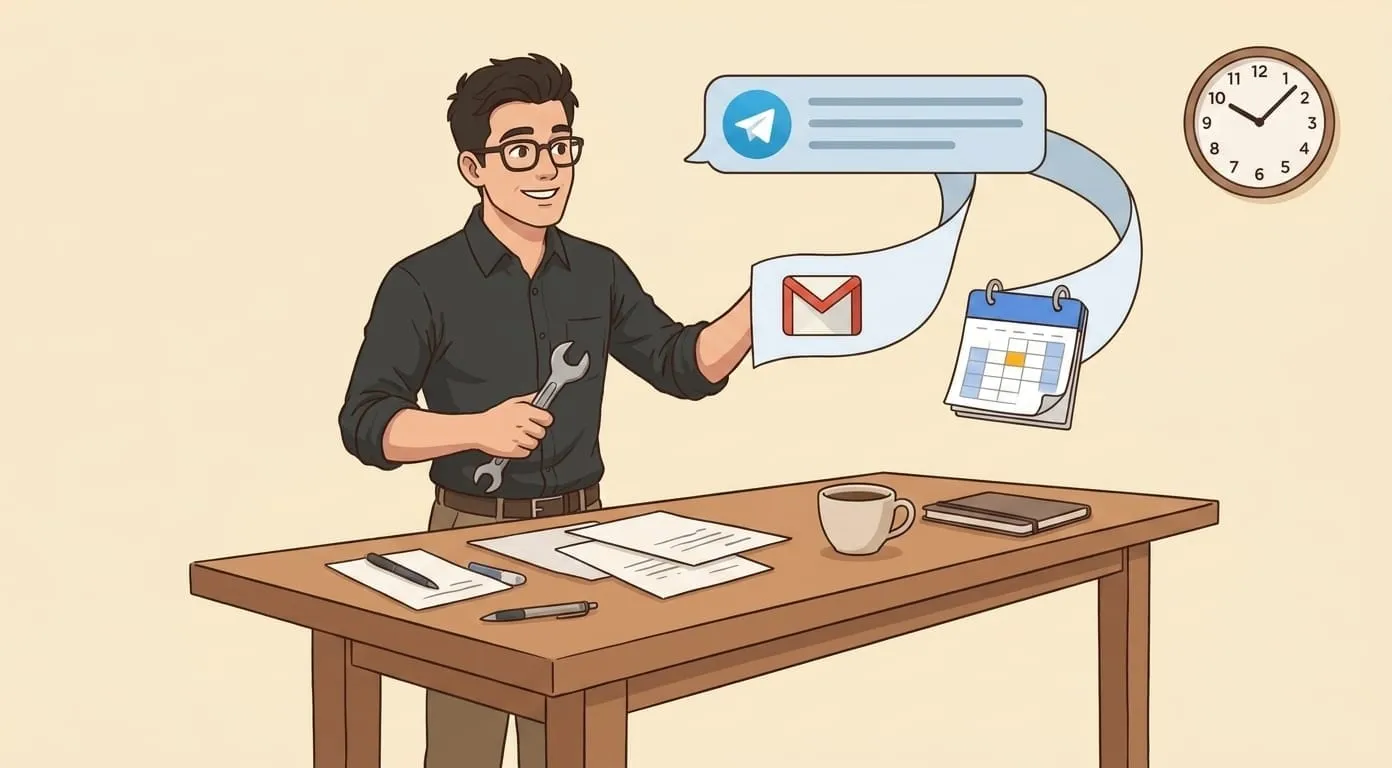
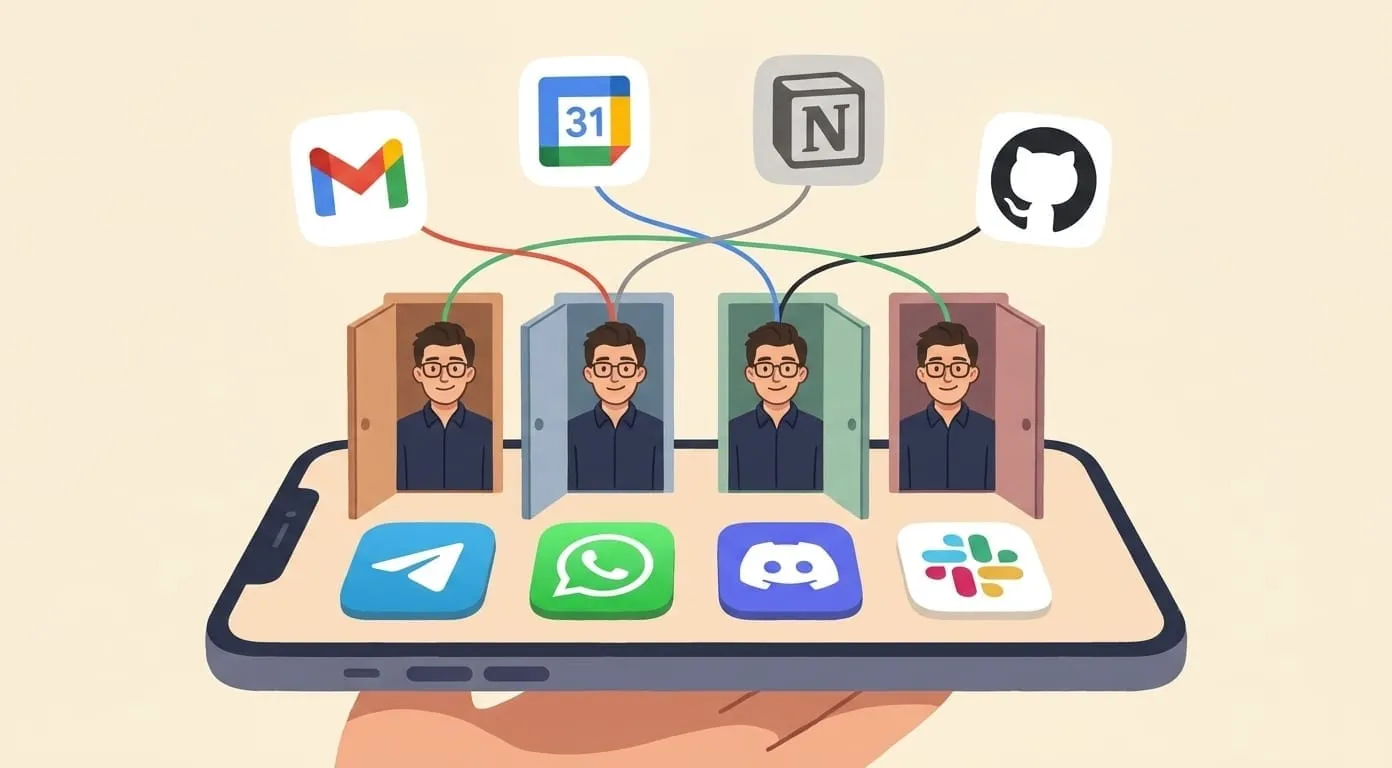
Connect Gmail, Calendar, Slack, Drive. Then when you ask "what's on my plate this week?" it pulls real data. No screenshots, no copy-pasting, no typing out your schedule by hand.
Setup takes under ten minutes per service. I put it off for weeks because I assumed it would be complicated. Turns out the whole thing took less time than my morning coffee. The assistant went from occasionally useful to something I check before my inbox. That shift happened the day I connected my Google account.
The difference is most obvious on Monday mornings. I used to open Calendar, scan the week, open Gmail, check what's pending, then try to figure out priorities. Now I type "what does my week look like and what's urgent in my inbox?" and get a single summary. It catches things I'd miss too, like a meeting that conflicts with a deadline I set last week, or a follow-up email I never sent.
If you're worried about privacy, that's reasonable. Check what permissions the integration actually needs. Most calendar integrations are read-only by default. You can start there and add write access later when you're comfortable.
5. Correct it, don't start over
When the first draft isn't right, say "make it shorter" or "more formal tone." Don't open a new conversation.
Your memory carries over (that's Rule 2). But the working state of that specific exchange doesn't. The assistant loses track of what you were refining, what it already tried, what you rejected. Starting fresh means rebuilding all of that from zero.
Treat it like working with a writer. First draft, feedback, second draft. I used to restart conversations constantly because I thought a clean slate would help. It didn't. Now I stay in the same thread and refine. The third attempt in an ongoing conversation is usually better than the first attempt in a fresh one.
The corrections don't have to be polite or structured. "Too long." "Wrong tone, more casual." "Keep the first paragraph, redo the rest." These all work. The assistant adapts to direct feedback. You don't need to explain your revision in three sentences when five words will do.
I've found that the best results come from being specific about what's wrong rather than what you want. "The intro is too salesy" gives the assistant more to work with than "make it better." Point at the problem, let it figure out the fix.
What changes once you build these habits
The biggest shift isn't any single rule. It's what happens after a few weeks of using all five together.
The assistant starts feeling less like a tool and more like a second brain that actually knows your work. Your memory builds up. Your requests get sharper because you've practiced adding context. You stop second-guessing whether it's worth asking for help with something small.
I use mine for things I never would've imagined when I started. Preparing for one-on-ones by having it pull recent threads with that person. Quickly checking if a contract clause matches what we agreed on in email. Drafting responses to investor updates at 11pm when I'm too tired to sound coherent on my own.
None of that worked when I was typing "help me with emails" into a blank chat. All of it works now.
**
Yevhen Fychak is CTO & co-founder of Amplify. He writes about building AI agents and the things they do that he didn't expect.