How to Connect an AI Assistant to Notion
Connect your AI assistant to Notion. An OpenClaw agent that searches pages, summarizes databases, creates entries, and manages your workspace – all from your messenger.
Last updated: May 2026
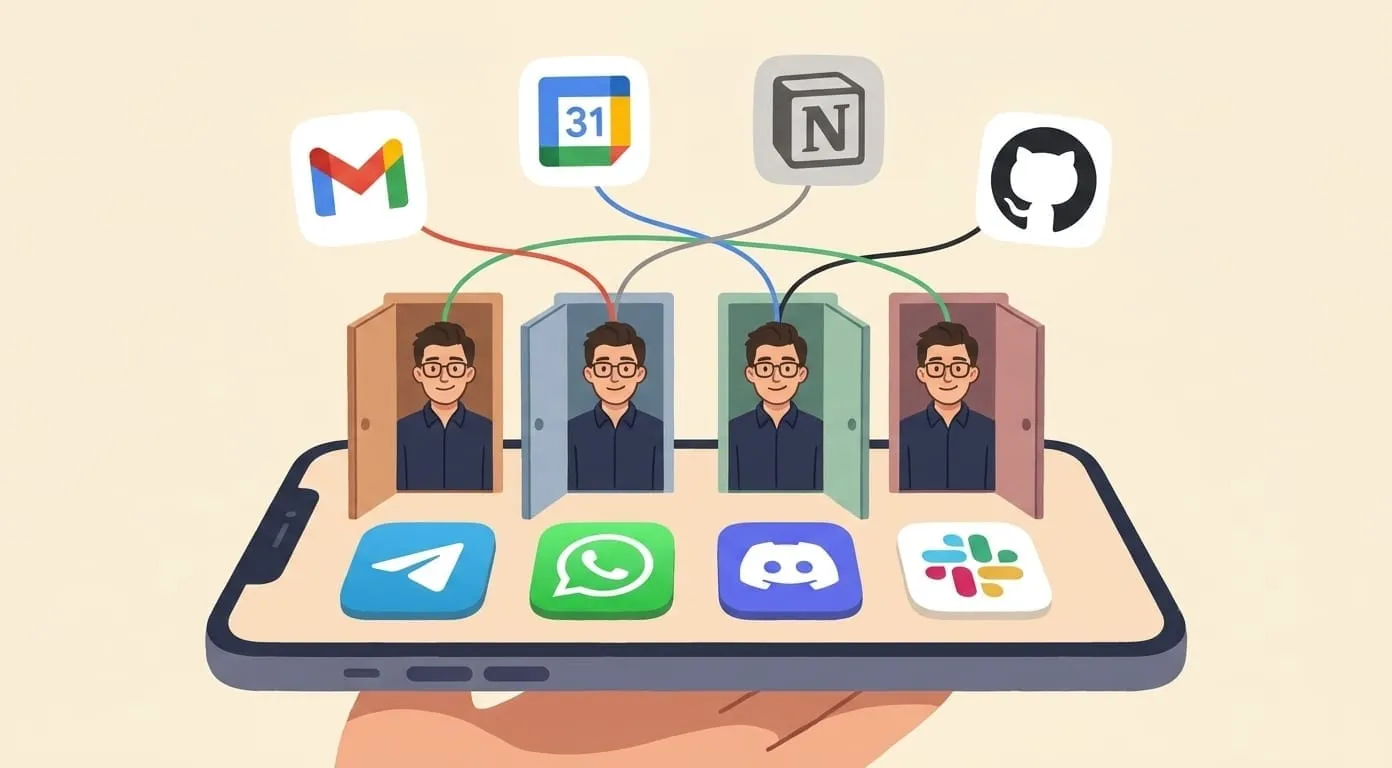
Your AI assistant connects to Notion and works with your pages and databases directly from your messenger. Ask it to find notes, summarize meeting records, create new pages, or query databases with natural language – all from Telegram, WhatsApp, Discord, or Slack. Built on OpenClaw's agent framework, it doesn't just read pages: it understands your workspace structure and can chain Notion actions with your other tools.
Setup takes about three minutes.
What You'll Get
Once connected, your assistant can:
What You Need
Step-by-Step Setup
Step 1: Open the Notion Developer Portal
Go to notion.so/developers/connections – this is where Notion manages API connections. You can also reach it from Amplify Dashboard → Service Integrations → Notion → "Connect".
Click "+ New connection".
Step 2: Create Your Connection
Fill in:
Click "Create connection".
Step 3: Copy the Access Token
On your new connection's Configuration page, you'll see an "Integration token" section. The token starts with ntn_ (or secret_ for older integrations).
Click the copy button next to the token. Go to your Amplify Dashboard → Service Integrations → Notion and paste it.
Step 4: Grant Content Access
Your connection needs permission to access specific content. Choose one approach:
Option A – Full Workspace (Recommended)
In your connection's Content access tab, click "Edit access" and select your entire workspace. The assistant can access and create pages anywhere. This is the easiest setup and you can restrict later.
Option B – Specific Pages Only
For more granular control:
Child pages automatically inherit access from their parent – share a top-level page and all subpages become accessible.
Step 5: Try It
Open any connected messenger and send:
"Show me my recent Notion pages"
You'll see a list of your most recently updated pages. Your Notion connection is live.
What You Can Do – Examples
Search and Read
"Find my meeting notes from last week"
"What's in my 'Project Ideas' database?"
"Summarize the page called 'Q2 Strategy' in 5 bullet points"
"What did I write in my journal yesterday?"
Create Content
"Create a new page in my Notes database: 'Client Call – May 26'"
"Add a task to my project board: 'Review design mockups' due Friday, priority High"
"Create a meeting notes page for today's standup with sections: Attendees, Discussion, Action Items"
Update Entries
"Mark the 'Design review' task as complete"
"Update my reading list: add 'Thinking in Systems' by Donella Meadows, status: To Read"
"Change the priority of 'Fix login bug' from Medium to High"
Query Databases
"What tasks are due this week?"
"Show me all items in my CRM tagged 'follow-up'"
"Which projects have status 'In Progress' and are past their deadline?"
"How many tasks did I complete this month?"
Cross-Service Chains (OpenClaw Agent Advantage)
"Check my calendar for today and create a Notion page with prep notes for each meeting"
"Summarize my last 5 emails and add the key action items to my Notion task board"
"Find all overdue tasks in Notion and send me a summary in Telegram every Monday at 9am"
These multi-step workflows work because Amplify is an OpenClaw agent — it reasons across Notion, Google Workspace, and your other connected services in a single conversation.
Tips and Tricks
Start with full workspace access. You can always restrict it later by removing the connection from specific pages. Starting broad means you won't hit "I don't have access to that page" errors while exploring what the assistant can do.
Databases are the real power. Notion databases with properties (status, date, tags, priority) become queryable with natural language. "Show tasks due today sorted by priority" just works. The more structured your Notion workspace, the more useful the assistant becomes.
Child pages inherit access automatically. Share a top-level page and every page nested under it becomes accessible. You don't need to add the connection to each individual subpage.
Combine with other integrations. Because Amplify is an OpenClaw agent, Notion isn't isolated – it's part of your full toolkit. "Check my calendar, find today's meetings, create a Notion page for each with attendee lists from my contacts" chains three services in one command.
Token security. Your Notion access token grants programmatic read/write access to your workspace. Keep it private. If you suspect it's compromised, go to your connection's Configuration page and regenerate it – the old token stops working immediately.
Works from any channel. The Notion connection isn't tied to a specific messenger. Ask about your Notion workspace from Telegram, WhatsApp, Discord, or Slack – same access, same memory, same capabilities.
What It Costs
Notion integration is included in the $9.99/month platform fee – no extra charge for the connection itself. Standard AI processing costs (~$0.003 per message) apply for each request that involves your Notion data.
Frequently Asked Questions
Only what you grant. Option A (full workspace) gives access to everything you own. Option B lets you choose page by page. At any time, you can remove the connection from specific pages via the "..." menu → "Connections" to restrict access.
No. The assistant only creates or updates pages when you explicitly instruct it. "Create a page" or "Mark this task complete" require your direct request. It never makes unsolicited changes, moves pages, or deletes content.
Yes. Notion's API is available on all plans – Free, Plus, Business, and Enterprise. There are no plan restrictions on creating connections or using the API.
Each Amplify account connects to Notion independently with its own token. If teammates need AI access to the same Notion workspace, each person creates their own connection. This keeps memory and conversation context separate – your assistant doesn't see your colleague's requests or vice versa.
Notion AI works only inside the Notion interface – it can summarize pages and generate text, but only when you're actively using Notion in a browser or app. Amplify's OpenClaw agent works from your messenger (Telegram, WhatsApp, Discord, Slack), connects Notion to your other services (Gmail, Calendar, Drive), and can chain cross-service actions. Ask from Telegram while walking, get Notion results. Combine calendar data with Notion databases. Automate recurring Notion workflows from a single voice message – none of this is possible with Notion's native AI.
For the interactive setup wizard with live token validation and access configuration, visit getamplify.team/notion-setup.