How to Use AI with Google Workspace — Gmail, Calendar, Drive
Connect your AI assistant to Google Workspace. An OpenClaw agent that drafts emails, checks your calendar, searches Drive, updates Sheets, and summarizes Docs – all from your messenger.
Last updated: May 2026
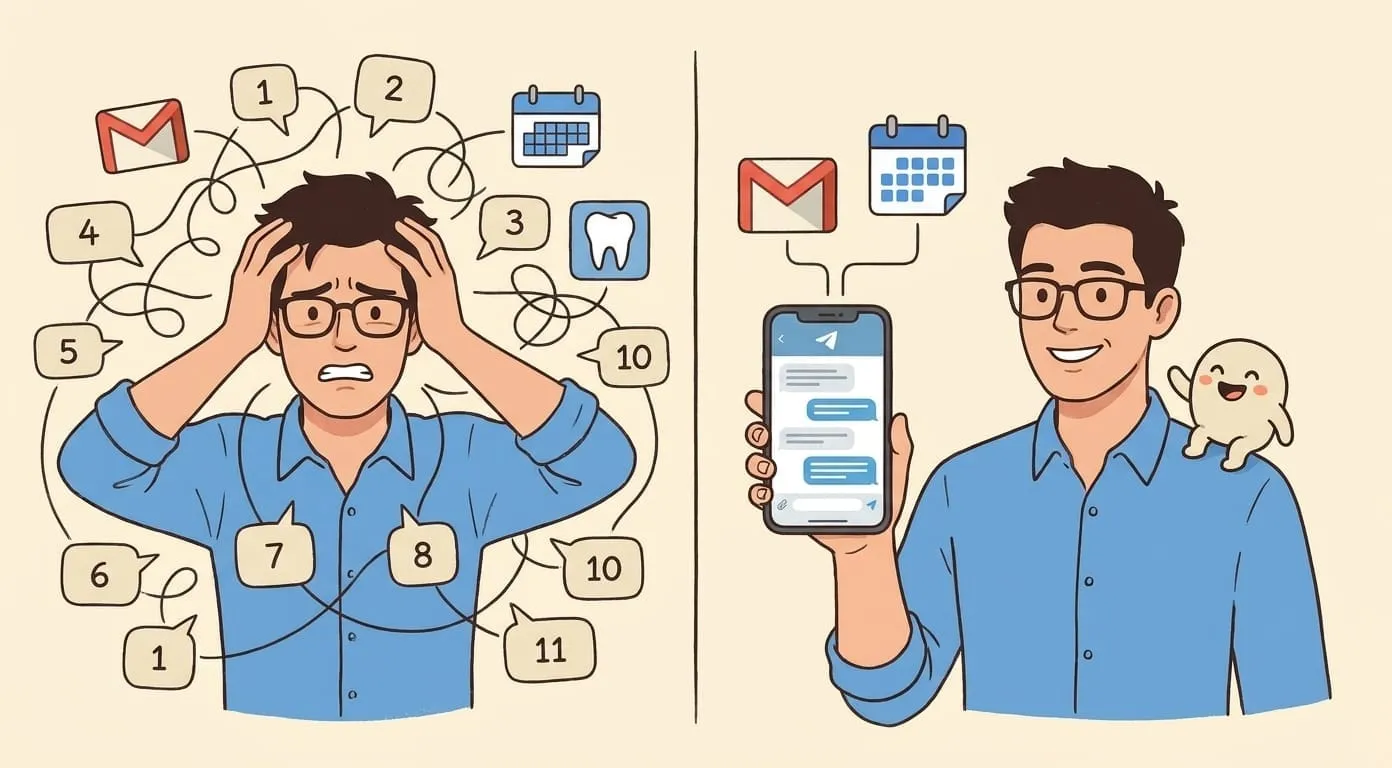
Connect your AI assistant to Google Workspace and control Gmail, Calendar, Drive, Docs, and Sheets with natural language. Ask "What's on my calendar today?" from Telegram. Say "Draft a reply to that email from Sarah" in WhatsApp. Because Amplify runs on OpenClaw's agent framework, it can chain actions across services – check your calendar, find conflicts, and email the relevant person to reschedule, all from a single request.
Here's how to connect it in about two minutes.
What You'll Get
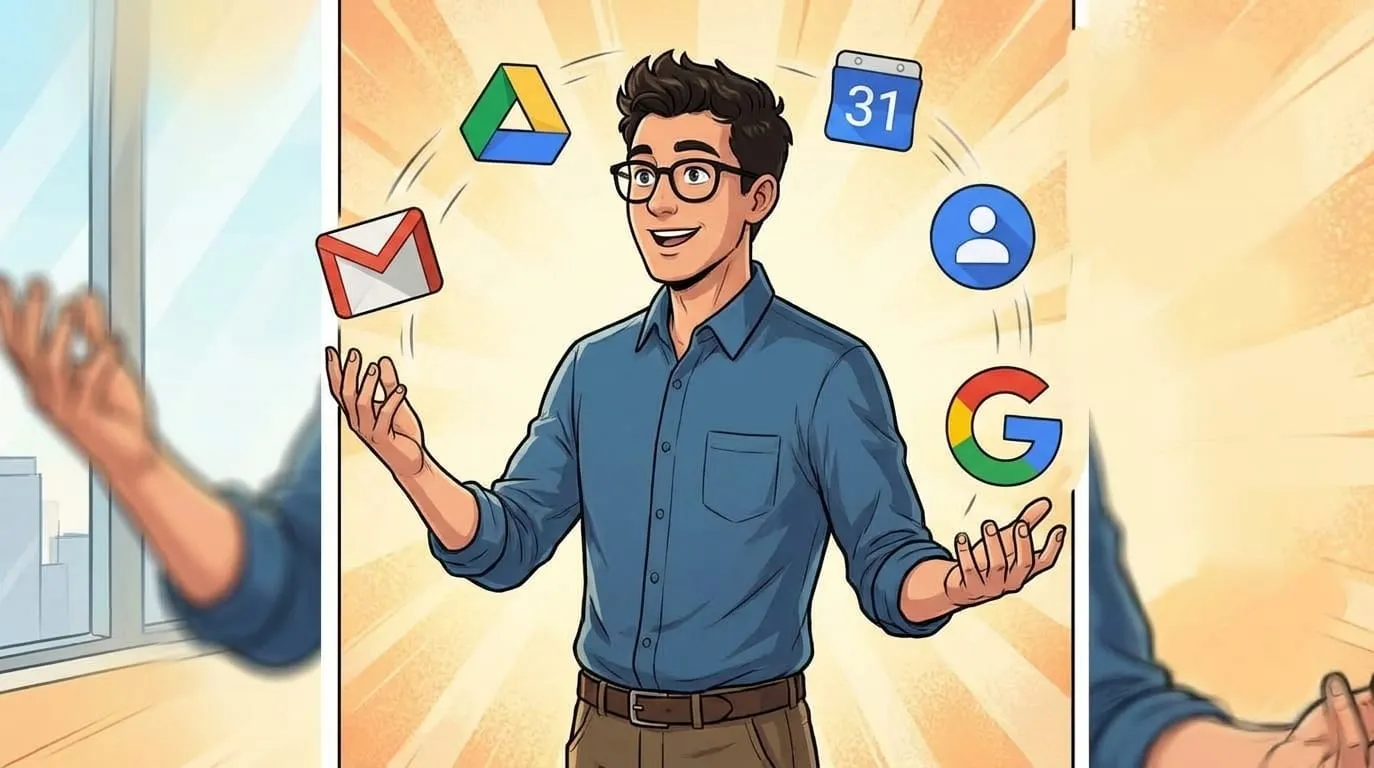
Once connected, your assistant can work across six Google services:
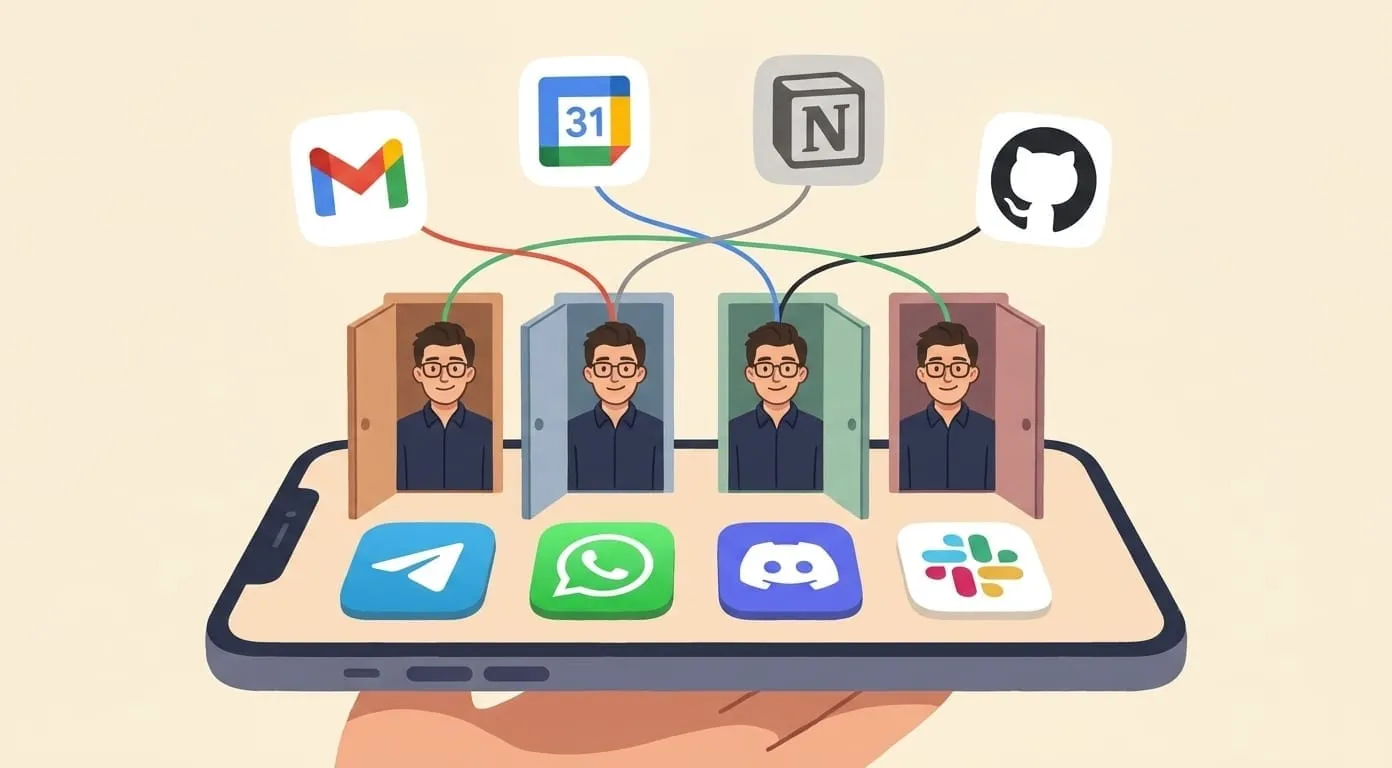
All accessible from any connected messenger – Telegram, WhatsApp, Discord, or Slack. No need to open Gmail or Calendar in a browser.
What You Need
Step-by-Step Setup
Step 1: Open Service Integrations
In your Amplify Dashboard, go to Service Integrations → Google Workspace. Click "Connect".
Step 2: Choose Your Access Level
You'll see each Google service with three options:
| Level | What the assistant can do |
|---|---|
| Off | Can't access this service at all |
| Read-only | View, search, and summarize — but can't modify anything |
| Full access | Read, create, edit, send, and manage |
Choose what feels comfortable for each service. Recommended: start with read-only for everything. You can upgrade individual services to full access later when you need write capabilities.
Step 3: Authorize with Google
Click "Connect with Google". You'll be redirected to Google's standard OAuth authorization page:
You'll be redirected back to the Amplify Dashboard automatically.
Step 4: Wait for Activation
Amplify activates your connection server-side. This takes 15-30 seconds. You'll see a confirmation screen showing exactly what was authorized.
If Google granted less access than you requested (uncommon), you'll see which services need reconnection – just click "Reconnect" to try again.
Step 5: Try It
Open any connected messenger channel and ask:
"What's on my calendar today?"
You'll get your schedule back within seconds.
What You Can Do – Examples by Service
Gmail
"Do I have any unread emails from my manager?"
"Summarize my last 5 emails in bullet points"
"Draft a reply to that invoice email – confirm we'll pay by Friday"
"Send an email to [email protected]: meeting moved to 3pm, sorry for the short notice"
Google Calendar
"What's on my schedule this week?"
"Am I free Thursday at 2pm?"
"Create an event: Team standup, Monday 9:30am, 15 minutes, invite [email protected]"
"Move my 4pm meeting to tomorrow same time"
Google Drive
"Find the Q2 report in my Drive"
"Summarize the document called 'Project Brief'"
"What files did I edit this week?"
"Share the budget spreadsheet with [email protected]"
Google Docs
"Create a new doc called 'Meeting Notes — May 26'"
"Add the action items from today's meeting to my Running Notes doc"
"Summarize the key points in the strategy document"
Google Sheets
"Open the team budget sheet – what's the total in column D?"
"Update row 5, column C to $2,500"
"Create a new sheet called 'Expense Tracker' with columns: Date, Category, Amount, Notes"
Cross-Service Chains (OpenClaw Agent Advantage)
"Check my calendar for tomorrow, find all meetings with external people, and draft prep emails for each one"
"Summarize this week's emails from clients and add a summary page to my Notion workspace"
"Find all events this week where I'm double-booked and suggest which ones to reschedule"
These multi-step workflows work because Amplify is an OpenClaw agent – it reasons across services rather than executing isolated commands.
Tips and Tricks
Start with read-only. You can always upgrade later. Read-only mode lets you search, summarize, and review everything without any risk of accidentally sending an email or modifying a document.
Each service is independent. You can have full Gmail access with read-only Calendar and Drive turned off entirely. Mix and match to fit your comfort level and workflow.
Works from any channel. The Google connection isn't tied to a specific messenger. Connected via Telegram? You can ask about your calendar from WhatsApp too. The assistant uses Google Workspace regardless of which channel you message from.
Voice commands are natural. Send a voice message in Telegram: "Check if I have anything at 3pm tomorrow and if so, remind me an hour before." The assistant handles transcription, calendar lookup, and reminder creation in one shot.
Multi-step actions are the real power. Because this is an OpenClaw agent, it can chain tasks across services without you spelling out each step. "Find all unread emails from this week, summarize them, and create a Google Doc with the summary" – one message, multiple services, done.
Privacy first. Amplify processes your Google data only when you explicitly ask. There's no background scanning, no indexing of your inbox, no training on your content. Access tokens are encrypted per-user on EU-hosted infrastructure.
What It Costs
Google Workspace connection is included in the $9.99/month platform fee – no extra charge. Standard AI processing costs (~$0.003 per message) apply for each request that involves your Google data.
Frequently Asked Questions
Yes. Amplify uses Google's standard OAuth 2.0 protocol – your password is never shared with Amplify. Access tokens are encrypted per-user, stored in EU-hosted infrastructure (GDPR compliant). Your emails, documents, and calendar data are not used for model training and are not accessible to other users or to Amplify's team.
Yes, two ways: disconnect from the Amplify Dashboard (instant), or go to your Google Account → Security → "Third-party apps with account access" and remove Amplify. Both work immediately.
Yes. Both personal Gmail accounts and Google Workspace (business/education) accounts work. If your organization restricts third-party app access, your Workspace admin may need to approve the connection – the approval request appears in the admin console automatically.
Set Gmail to "Off" and Calendar to "Read" or "Full access" during the permission selection step. Each service is independently controlled — you're never forced to grant access to services you don't want.
Only if you explicitly set Gmail to "Full access" (Read + Send) mode. In Read-only mode, the assistant can search, read, and summarize your emails but cannot draft, send, reply to, or modify them in any way.
Google Workspace integration isn't just API calls – it requires understanding conversational context ("that email" means the one you just discussed), chaining actions across multiple services (calendar + email + docs in one request), remembering your preferences over time ("always CC my assistant on client emails"), and reasoning about complex scheduling. OpenClaw's agent architecture handles all of this. A simple chatbot with Google API access can make individual calls but can't reason across services or maintain conversation context.
For the interactive setup wizard with granular permission selection, visit getamplify.team/google-setup.