How to Add an AI Assistant to Telegram (Step-by-Step)
Add a personal AI assistant to Telegram in under five minutes. Powered by OpenClaw – voice commands, morning briefings, file summaries, and cross-channel memory from one chat.
Last updated: May 2026
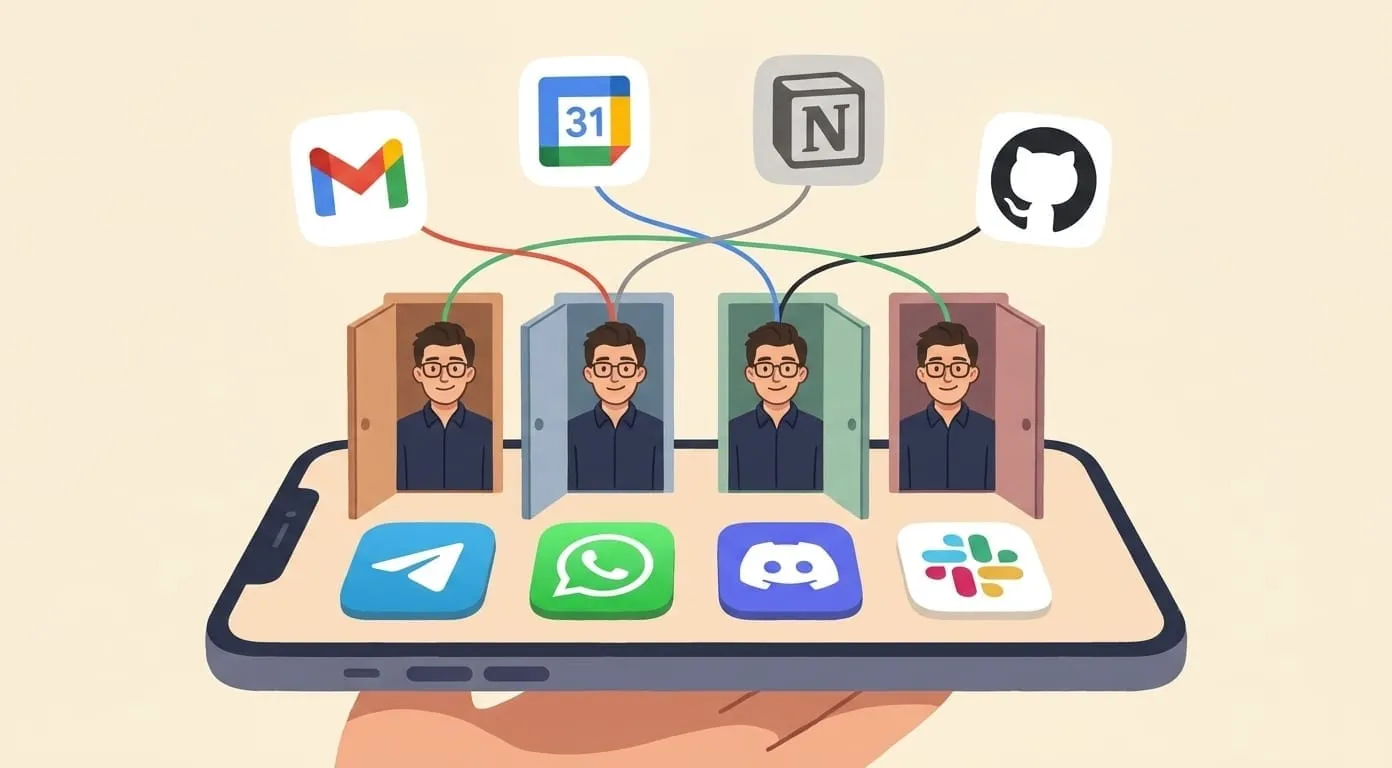
Your AI assistant lives directly in Telegram – no apps to install, no browser tabs to open, no tools to switch between. Send a text or voice message, get an intelligent response back. Built on OpenClaw, an open-source AI agent framework, it has persistent memory, modular skills, and works seamlessly across all your messaging channels.
Here's how to connect it in under five minutes.
What You'll Get
Once set up, your Telegram AI assistant can:
Your assistant is the same across all channels. Message it in Telegram now, continue the conversation in WhatsApp later – it remembers everything.
What You Need
Step-by-Step Setup
Step 1: Create Your Amplify Account
Go to getamplify.team and sign up. You'll pay the $9.99 monthly platform fee and add a minimum $3 usage deposit. The deposit covers actual AI usage – it never expires and you can top it up anytime.
Step 2: Open BotFather in Telegram
Open Telegram and search for @BotFather – this is Telegram's official bot-creation tool. It's verified with a blue checkmark. Start a chat with it.
Step 3: Create Your Bot
Send the /newbot command to BotFather. It will ask you for two things:
bot (e.g. my_amplify_bot or alex_assistant_bot)BotFather confirms creation and sends you a bot token.
Step 4: Copy the Bot Token
BotFather replies with a long string that looks like 123456789:ABCdefGHI-jklMNOpqrSTUvwxyz. This is your bot token. Copy it.
Go to your Amplify Dashboard → Channels → Telegram and paste the token in the Bot Token field.
Step 5: Enter Your User ID
Search for @userinfobot in Telegram and start a chat. Send it any message – it immediately replies with your numeric user ID (a number like 987654321).
Copy this number and paste it in the User ID field on the Dashboard.
Click Connect.
Step 6: Send Your First Message
Open a chat with your new bot in Telegram. Send any message – "Hello" is fine. You'll get an intelligent response within seconds. Your AI assistant is live.
Five Things to Try First
1. Send a Voice Message
Hold the microphone button in Telegram and speak naturally. The assistant transcribes your voice message, understands the content, and responds. Perfect for when you're driving, walking, or cooking.
"Hey, remind me to send the proposal to Sarah by end of day Friday"
2. Summarize a Link
Paste any URL and ask for a summary:
"Summarize this in 3 bullet points: https://example.com/article"
The assistant reads the page and gives you the key points – no need to open the link yourself.
3. Check Your Calendar
After connecting Google Workspace from the Dashboard:
"What's on my calendar today?"
"Am I free Thursday at 2pm?"
"Create a meeting: Team sync, Monday 10am, 30 minutes"
4. Generate an Image
"Generate an image: a cozy home office with warm lighting and bookshelves"
The assistant creates an image and sends it right in the Telegram chat. You can request edits: "Make it more minimal" or "Add a window with a city view."
5. Set Up a Morning Briefing
Enable the Morning Briefing skill from Dashboard → Skills and set a schedule. Every morning, your assistant sends a Telegram message with:
Cost: about $0.01 per briefing.
Tips and Tricks
Voice-first workflow. Telegram voice messages are the fastest way to interact with your assistant. Speak naturally – it understands context, follow-up questions, and nuanced requests. Many users never type at all.
Forward messages for context. Forward a message from another chat to your assistant and ask: "What should I reply to this?" or "Translate this to English." The assistant sees the forwarded content and responds accordingly.
Bot username matters. Choose a username you'll recognize in your chat list. You can't rename the bot's username later without creating a new one (display name can be changed anytime).
Cross-channel memory. Because Amplify runs on OpenClaw's agent architecture, your assistant shares memory across all connected channels. Start a conversation in Telegram, continue it in WhatsApp or Discord – full context preserved. No repetition needed.
Pin the chat. Long-press your bot's chat and pin it to the top of your Telegram chat list for instant access.
Group chats work too. Add the bot to a Telegram group. It responds when mentioned by username and stays quiet during normal conversation.
What It Costs
All costs include 7.5% service fee. A typical light user spends ~$12–15/month total. Your deposit never expires – quiet months cost less.
BYOK option: Connect your own API key and pay LLM costs directly. Your Amplify deposit then only covers non-LLM services (media, search, transcription).
Frequently Asked Questions
Yes. BotFather is Telegram's free official tool for creating bots. The bot itself costs nothing to create or maintain. You only pay Amplify's platform fee ($9.99/month) and AI usage costs from your deposit.
Yes. Send a voice message and the assistant transcribes it, understands the content, and responds with text. You can also ask it to respond with audio – it generates voice clips using ElevenLabs. This makes it fully usable hands-free while driving or walking.
Yes. Add the bot to any group where you're an admin. It responds when mentioned by its username (@your_bot_name) and stays silent during regular group conversation. Useful for shared teams or family groups.
Each Amplify account connects to one Telegram bot at a time. If you already use a bot for another purpose, create a separate bot via BotFather for your AI assistant – it takes 30 seconds and they don't interfere with each other.
OpenClaw is the open-source AI agent framework that powers Amplify. Unlike simple chatbots that forget context after each conversation, an OpenClaw agent has persistent memory, modular skills (web search, image generation, calendar access, file handling), and can operate across multiple channels simultaneously. Your Telegram bot isn't just a chat interface – it's a full AI agent that remembers, learns, and acts.
For the interactive setup wizard with live screenshots, visit getamplify.team/telegram-setup.